Share what’s happening at your church.
Publish news, devotionals and stories on your church website. Each post has its own page, a cover and a search-friendly title.
 Easter week schedule
- Mission trip report
- A word for the week
- Meet our new youth pastor
Write and publish
Open the Blog Posts screen of your Site and choose New post. The only thing a post must have is a title. You can then add a short description for lists, a category, a cover picture and the full text.
The text editor has a toolbar for headings, bold, italic, strikethrough, bulleted and numbered lists, links and code blocks. When you are ready, press Publish. Until then, the post stays a draft that only your team sees.
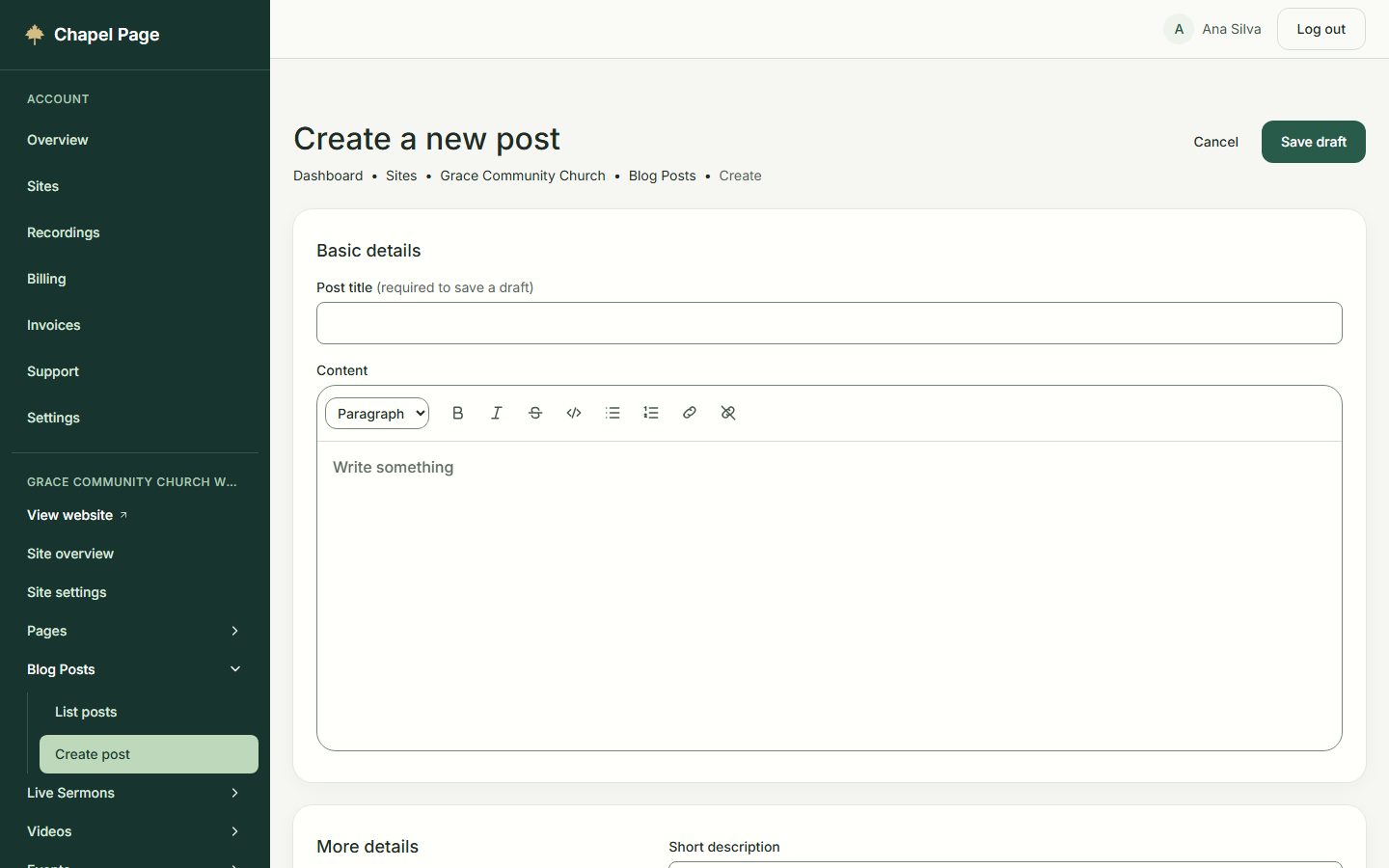
- Each Blog Post has a title, a short description, a cover picture up to 10 MB, a category and the full text.
- Each post has one category. Use it to group posts and filter lists.
- The author’s name appears on the post, taken from the Member who wrote it.
- A post can be unpublished later, which takes it off the website without deleting it.
What it is and what it does
The blog is where your church publishes news, devotionals and stories on its own website. Each Blog Post has its own page and web address, and an optional cover picture, a short description and a category. Posts appear on a list at /blog and anywhere you place a Blog Post widget.
You write a post in the dashboard’s simple editor, much like a word processor, and press Publish when it is ready. There is nothing to install, and no web designer is needed.
- Each post has its own page, address and sharing buttons.
- A Blog link is added to your menu once you have a published post.
- Lists and sliders on any page show your newest posts automatically.
- Posts are in the Free plan and cost nothing extra.
What it gives your church
A website with stories on it tells visitors that the church is alive. The pastor’s weekly note, a mission trip report or an Easter schedule can be shared in minutes, without a newsletter tool or a separate blog service.
Search engines also like fresh pages. Each post is a new page people can find by searching, so a post about a food drive can bring a neighbor to your door.
- Staff and volunteers: a simple editor that any volunteer can learn in minutes, with drafts to prepare a post in advance.
- Visitors and members: news in one place, easy to read on a phone and easy to share.
- Search: your own SEO title and description for every post, and a sitemap that lists published posts.
Three kinds of cards
Not every post needs to be an article. In the Post appearance section, choose how a post looks in lists: a standard card, a quote card or a link card.
A quote card is good for a line from Sunday’s message, with who said it. The same post is still a normal page when someone opens it.
Standard: the cover over the title and short description.
Quote: a highlighted quote with the name of who said it.
Link: a card made to send readers on to another address.
The format only changes the card in lists. The post’s own page is the same for all three.
Found in search and shared well
Every post has a Search preview section where you set an SEO title and description. They are what appears in the search results. If you leave them blank, the post’s title and short description are used.
When someone shares a post, its cover appears as the preview picture. Each post page has Share buttons: copy the link, share to Facebook, or use the device’s own share menu.
- Set an SEO title and description for each post.
- When someone shares a post, its cover appears as the preview picture.
- Published posts are listed in your Site’s sitemap for search engines.
- Instagram has no direct button: copy the link and paste it in the app.
Drafts, Publish and no scheduling
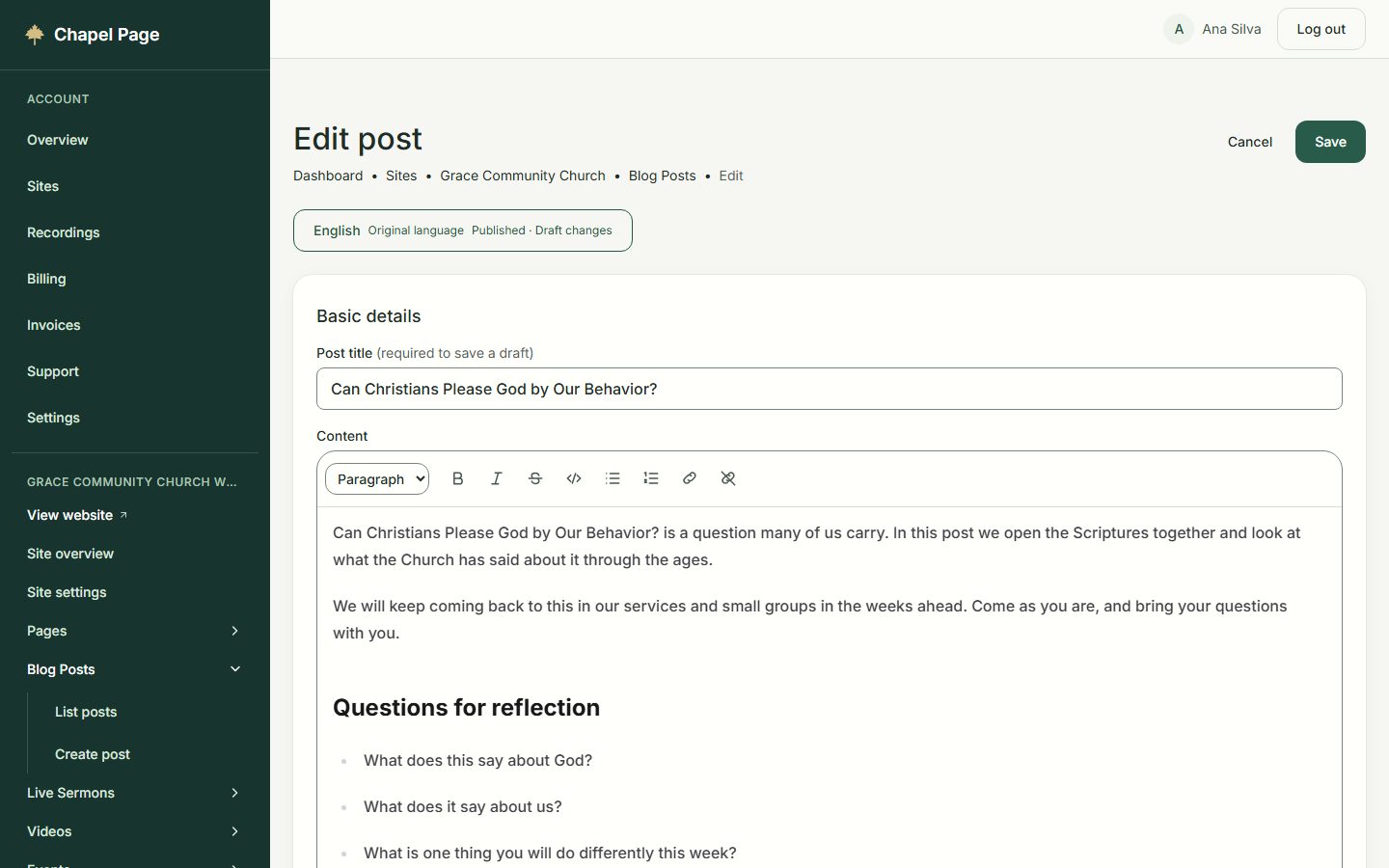
A post is either a draft or published. You can write a draft over several days, share it with a colleague by having them edit it in the dashboard, and publish when it is ready. The list has tabs for All, Published and Draft posts.
Posts publish when you press Publish. There is no way to schedule a post for a later date. If you want one to go out on Sunday morning, keep it as a draft and publish it then.
- If you edit a published post, your changes stay private until you press Publish again.
- View opens the published post on your Site; Edit opens the editor.
- Delete removes a post for good, so unpublish it if you might need it again.
- A Site must be Launched for the public to see its posts.
Posts in more than one language
A Site can show its pages in English, French and Spanish. A post can have a version in each language that your Site uses. Open the post in the editor and use the language tabs.
Each version has its own title, address, description, category, text and search fields. Each one is published on its own, so you can publish the English post first and the French one next week.
- A visitor sees the version in the language they chose.
- The cover and author are shared by all versions.
- Language links appear in your header with the language switch widget.
- A language is only shown to visitors once its version of the post is published.
Show your latest posts anywhere
You do not have to send visitors to the blog page to see your news. Put a Blog widget on your home page, and your newest posts show there and update on their own when you publish something new.
There are five layouts, called Content list, Content grid, Content slider, Picked items and Featured item. Choose how many posts, the order, a category and a card style.
See every widget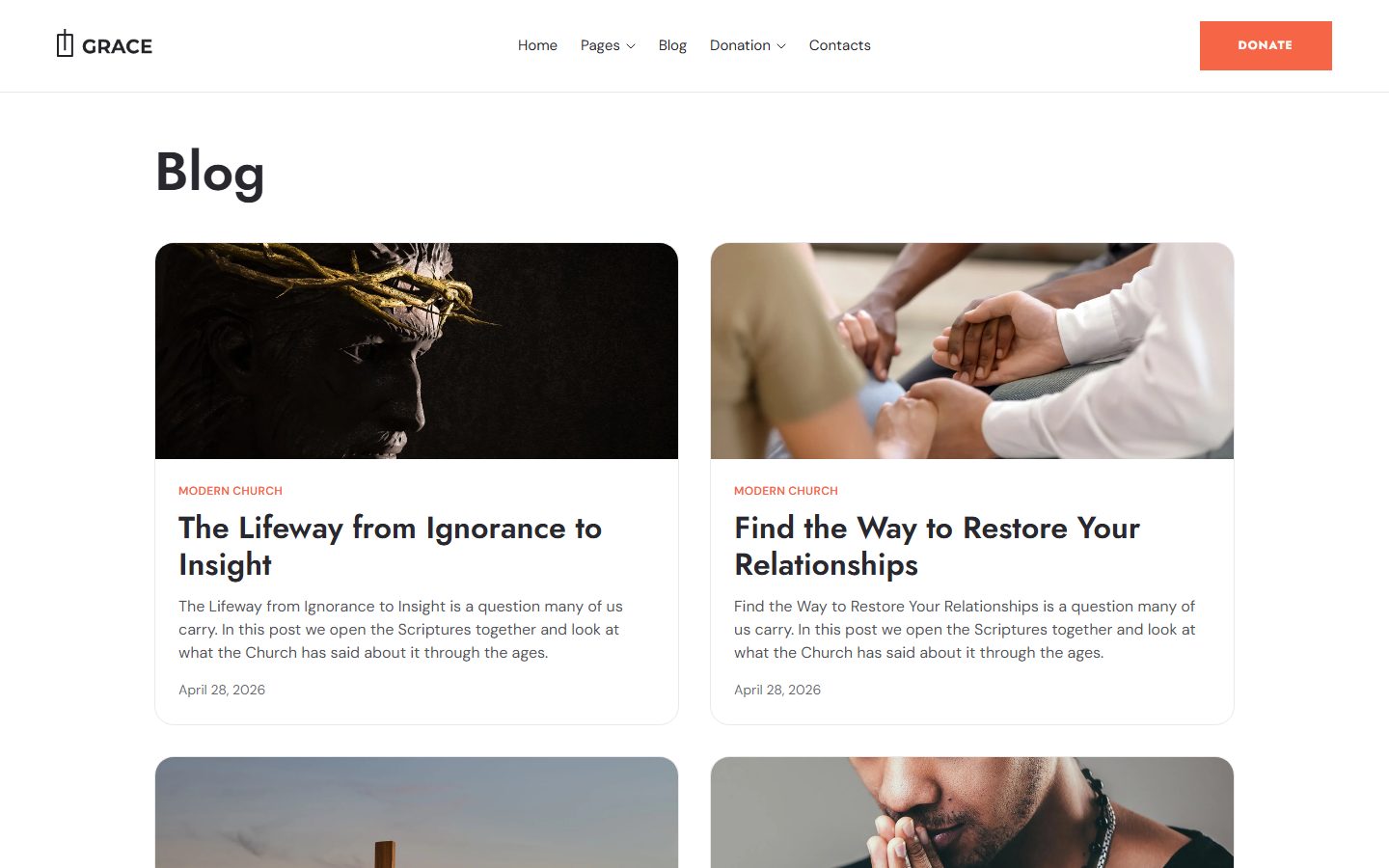
- Lists, grids, sliders and a featured item show your newest posts and update by themselves.
- Hand-pick posts for a page, or filter by category.
- Order them newest first, oldest first or by title.
- Show or hide each card’s date, category and short text. The same widgets can show Events, sermons and ministries.
Which plan includes the blog
Blog Posts are part of the website itself, so they are on every plan, including Free at $0. You can write as many Blog Posts as you want, and no plan limits their number.
A paid plan adds other tools next to the blog, such as live streaming, Events and giving. Those have their own sections but are written and published the same way.
Comparer les forfaits- Free ($0)
- Blog Posts, Pages and Templates, with one Site.
- Lite ($24 a month)
- adds live streaming, Videos and Ministries.
- Plus ($59 a month)
- adds Events, Calendar, Staff, Giving, Donations, the Community Inbox and 100 MCP credits a month, so an AI assistant can draft posts.
- Pro ($169 a month)
- higher streaming allowances and 10,000 MCP credits. If you downgrade, your Blog Posts are kept and stay published.
Cost: no separate blog subscription. It is part of the Site, on the Free plan.
Questions
Can we schedule a post for later?
No. Posts publish when you press Publish. Keep a post as a draft until it is ready, then publish it at the time you want. A draft is private, so you can prepare Sunday’s news during the week and publish it on Sunday morning.
Can we use tags?
No. Each post has one category, which you type in. Use it to group posts, such as News or Devotionals, and to filter a list in the Content widgets. Pick a short set of categories and use the same spelling each time.
Can an AI assistant write posts for us?
Yes, on the Plus and Pro plans. Connect Claude or another AI assistant to your Site and it can create, edit and publish posts. Read the draft before you publish, since you are responsible for what goes public. Each action uses MCP credits.
Can a post have a cover image?
Yes. Upload a picture of up to 10 MB in the Post cover section. The cover shows on the post, in post lists and as the preview picture when someone shares the post. Posts without a cover simply show no picture.
Is the author shown?
Yes. Each post shows who wrote it, using the Member’s name and picture. If that person’s login is deleted later, the post stays and the author line is left off. Posts that came with a Template have no author.
Can we write a short summary?
Yes. The short description shows in lists under the title and on the post page. It is also used for search results when you leave the SEO description blank. One or two sentences works best.
Are there different kinds of posts?
Yes. Standard, quote and link posts, each with its own card in lists. Standard is the usual one. For a quote post, you also enter who said it. The post’s own page looks the same for all three.
Do posts have SEO fields?
Yes. Set an SEO title and description for each post in the Search preview section. If you leave them blank, the post’s title and short description are used instead, so every post still has something sensible in search results.
How do we show posts on the home page?
Add a blog widget. There are five layouts, and each shows your newest posts on its own. Choose how many to show, the order and a card style. Drag the widget into a column on your home page in the builder.
Does the Blog appear in the menu?
Yes, once you have a published post. The Blog is then added to your website’s menu automatically, after your pages. Until a post is published, there is no Blog link, so visitors never click through to an empty page.
Can we write posts in French or Spanish?
Yes. A Site can use English, French and Spanish, and each post can have a version in each language the Site uses. Each version has its own title, address, text and SEO fields, and is published separately.
Do we need a paid plan to blog?
No. Blog Posts are included on the Free plan, with no card and no limit on how many you write. You only need a paid plan for other tools, such as live streaming, Events and giving.
Can volunteers write posts without help?
Yes. The editor works like a word processor, with a toolbar for headings, bold, lists and links. A volunteer who is a Member of your Account can write a draft, and any Member can publish it after checking it.
Can visitors comment or subscribe?
No. Blog Posts have no comments. Visitors can share a post, and you can add a newsletter sign-up form to the page with the Form widget, on the Plus plan. Sign-ups arrive in your Inbox and download as a CSV file.
What happens to our posts if we downgrade or cancel?
Your Blog Posts are kept and stay published, because they are part of the Free plan. Paid tools such as Events and live streaming pause, and their content is kept for when you upgrade again.