Aller au contenu
All features

Events & calendar

Every gathering, on one calendar.

Publish each Event with its date, time, place and details. Your services and Events appear together on a monthly calendar on your website.

Free forever. Paid plans from $24 a month. Cancel any time.

Illustrative preview

What it is and what it does

The calendar is where your church’s week lives. You publish an Event once, with its date, time, place and details, and it appears in three places: on its own page, on the monthly calendar on your website, and in any Events list you have put on a page.

It also shows your Live Sermons, so one calendar holds both your services and your gatherings. You keep it up to date by publishing, not by editing page after page.

  • Each Event has its own page with everything people ask about.
  • A Calendar widget shows the month on any page of your website.
  • Services and Events appear together on one calendar.
  • A dashboard calendar lets your team plan and schedule by clicking a day.

The calendar for your team

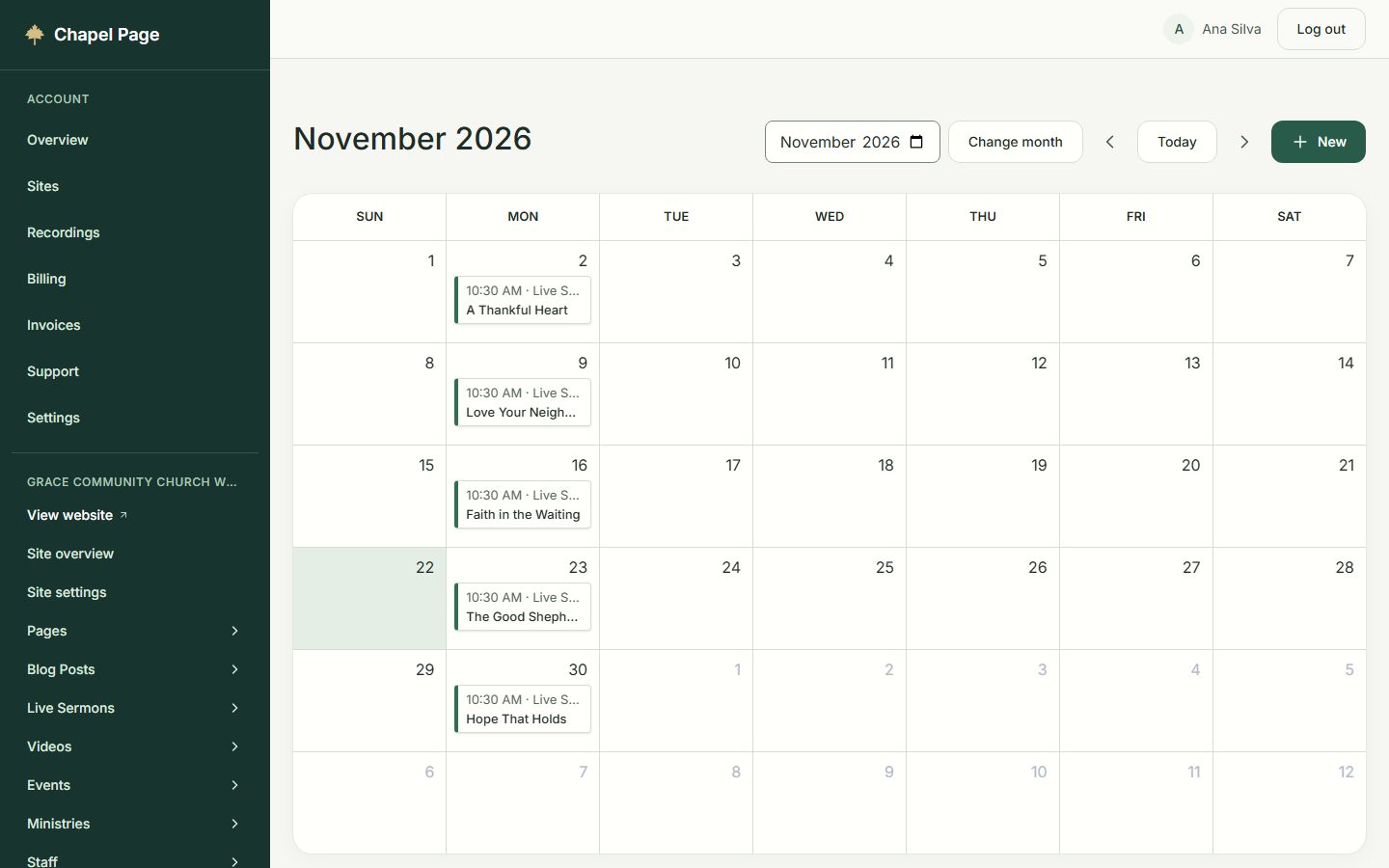
The dashboard has its own calendar with the same month grid. Click any day to schedule an Event or a Live Sermon on it, with a title, a time and a place. Each entry on the grid shows its time and its kind, and its edge is orange for a draft and green for a published item.

Scheduling an item does not publish it. That lets you plan the whole quarter first and publish each Event when its details are ready.

The dashboard calendar showing a month with Live Sermons on their days
  • Click a day to schedule an Event or a Live Sermon.
  • Move between months or jump to a chosen month.
  • Click an entry to open its page, finish it and publish it.
  • Today is highlighted, and every time shows in your Site’s time zone.

A page for each Event

Each published Event has its own page and link, which you can send in an email or a text message. The page opens with the cover picture as a banner, then the description, then the details in columns, then the gallery.

After the Event takes place, the page says it is over, so nobody turns up to an empty room. It also links to the Events just before and after it.

  • An Add to calendar button saves the Event to the visitor’s own calendar (Apple Calendar, Outlook, Google Calendar).
  • Details in three columns: day, hours and organiser; place and phone; email, website and cost.
  • A gallery of photos, two pictures across.
  • A note that the Event is over once its time has passed.
  • Links to the previous and next Events.
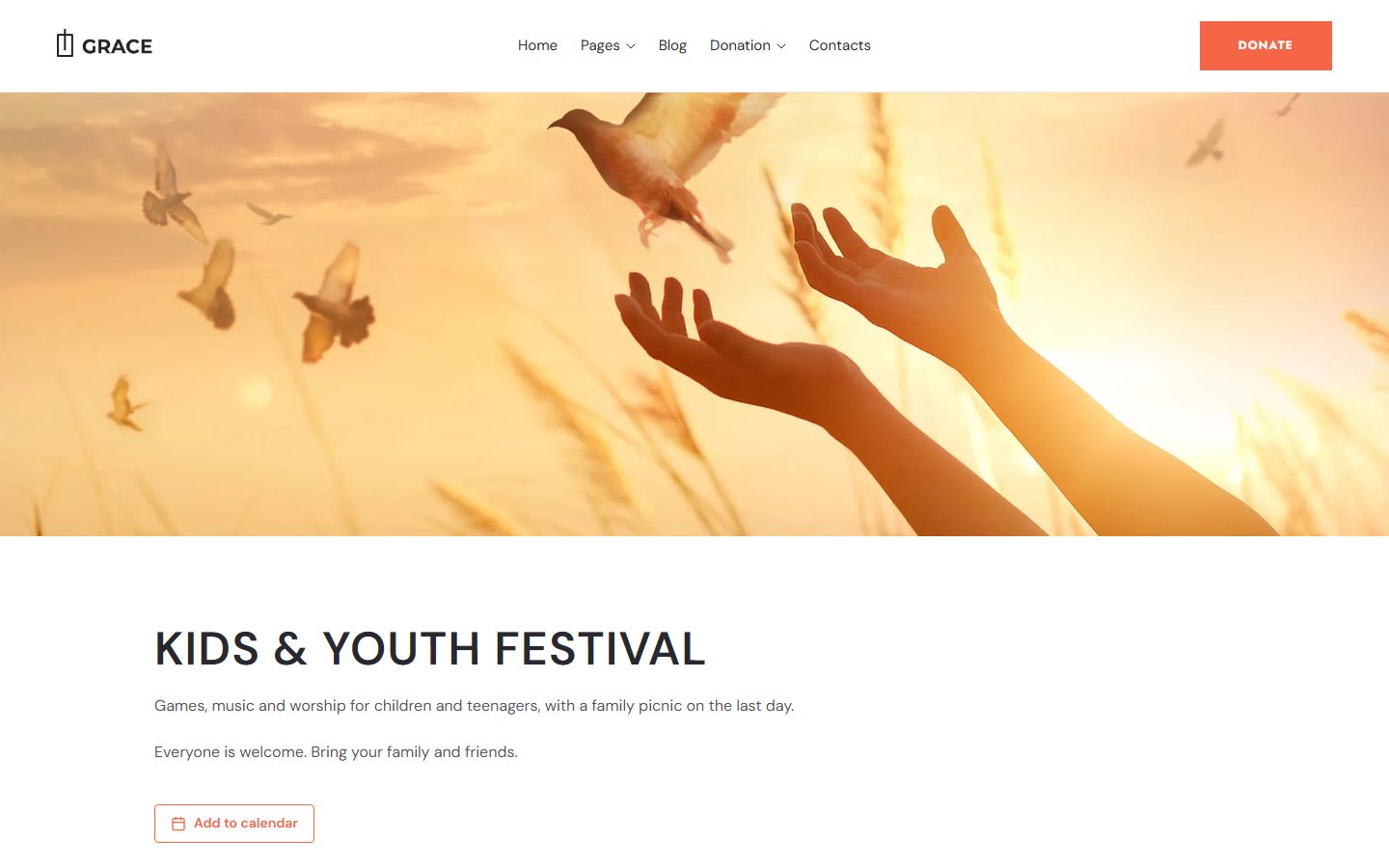
A published Event page on a church Site with its cover banner and details

A monthly calendar on your website

The Calendar widget shows one month at a time with arrows to move between months. Each Event and Live Sermon appears on its day, and clicking one opens its page. Add the widget to any page in the page builder, such as a Calendar page or the home page.

On a phone, seven columns are too narrow to read, so each day shows a dot and the month’s Events and services are listed below the grid.

  • Shows published Events and Live Sermons that have a date.
  • Drafts and items without a date are not shown to visitors.
  • An optional title above the calendar, in each language of your Site.
  • Colors and fonts follow your Site’s design.

Everything people ask about an Event

Most questions about a church gathering are the same: when does it start, where is it, what does it cost, who do I call. An Event page answers all of them in one place, so fewer people phone the office on Saturday afternoon.

Fields you leave empty do not appear on the page, so a free event shows no cost line and one with no phone number shows no phone.

  • Title, start and end time, place and organiser.
  • Cost, contact email, phone number and a website link.
  • A cover picture, a full description and a photo gallery.
  • A category, such as Youth, Worship or Outreach.
  • An SEO title and description for search results.
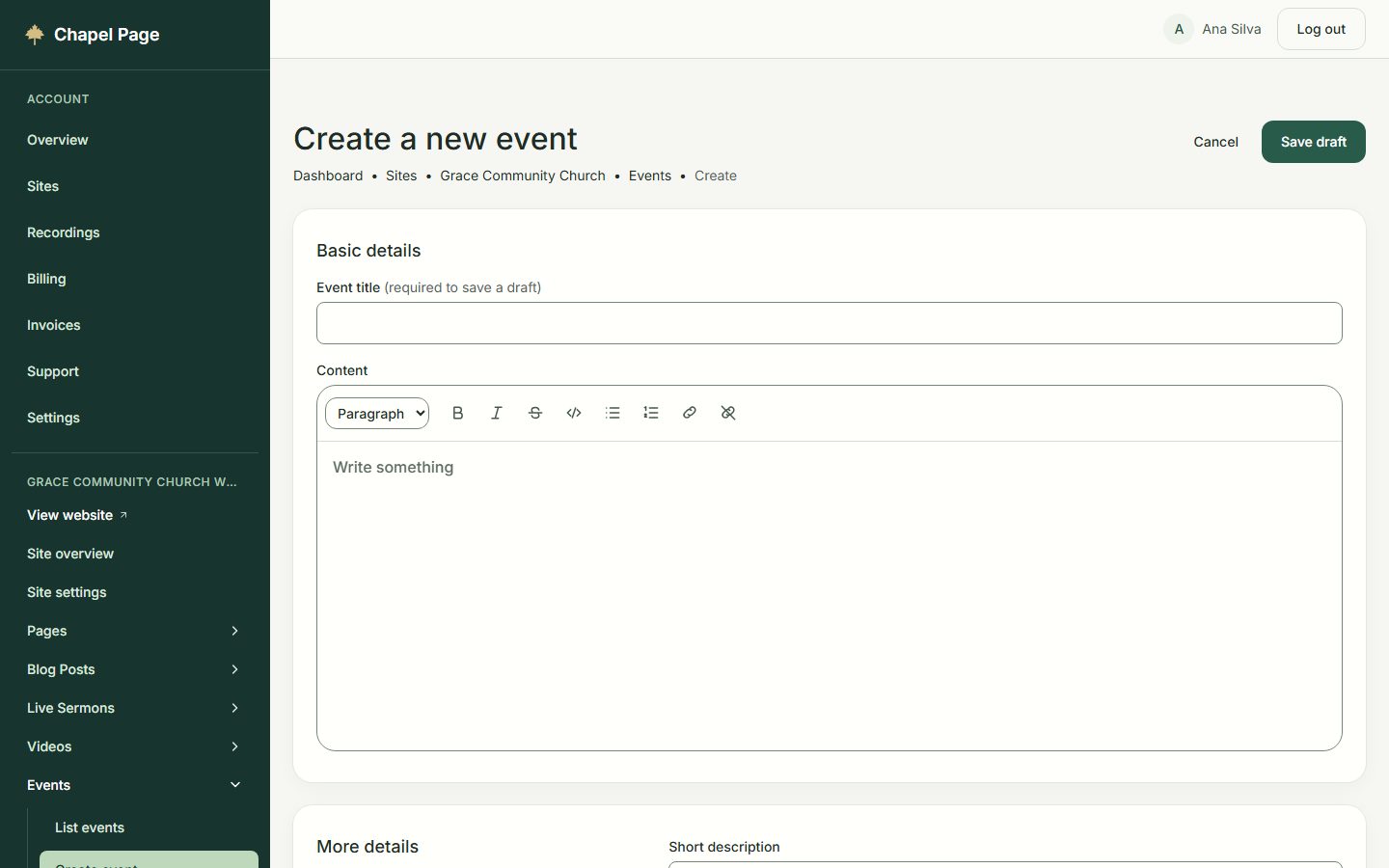
The Event form with date, place, organiser, cost and contact fields

Upcoming Events anywhere

A list, grid or slider of Events can go on any page. Put one on your home page and it fills itself from the Events you have published. You choose how many to show, the order, and whether to filter by a category.

Lists go by each Event’s date. They include past Events, so unpublish or delete the ones you no longer want to show.

  • Choose Events as the section to show, and how many (the default is 4).
  • Order by newest first, oldest first or by title.
  • Filter by category, for example only Youth events on the Youth page.
  • Show them as a list, a grid or a slider.

What a church calendar gives you

A calendar that updates itself saves the person who used to retype dates onto the website, the bulletin and the Facebook page. Publish once and the website is right everywhere.

Members and visitors get something they can trust. The times on your website are the times, and they can add them to their phone in one click.

  • Less office work: one entry replaces retyping a date on several pages.
  • Fewer phone calls, because place, time, cost and contact are on the page.
  • Visitors plan a first visit from the website and add it to their calendar.
  • Volunteers can add Events without editing any page layout.
  • Events, Calendar and Staff are included in Plus at $59 a month.
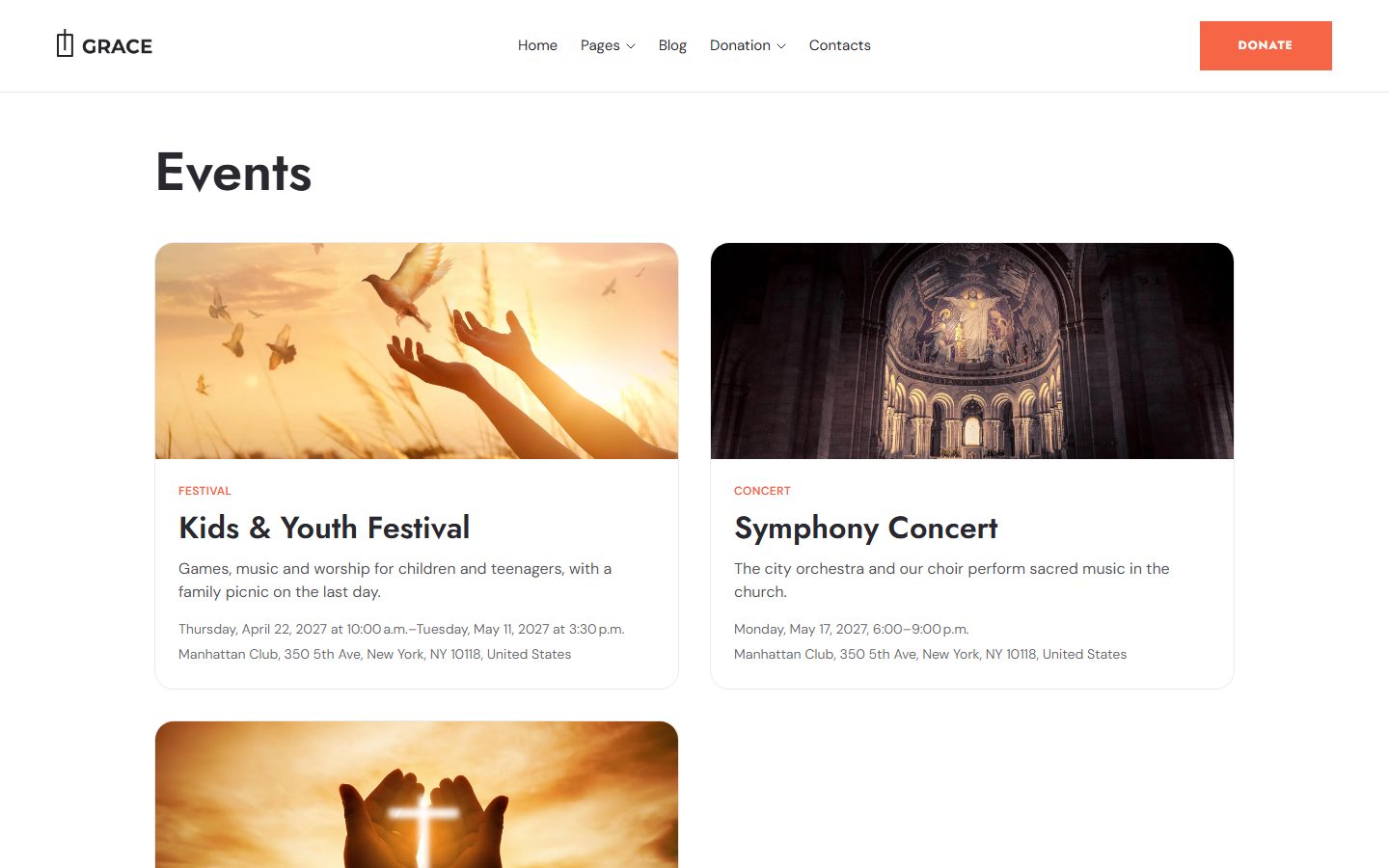
The Events page visitors see on a church Site

Your church’s time zone

Each Site has its own time zone, set once in its settings. Times show exactly as you typed them, in your church’s local time. A 10 a.m. service stays at 10 a.m. for everyone looking at your calendar, wherever they are.

The calendar file visitors download writes the hours without a time zone, so their calendar shows the hours you typed.

  • Set the time zone once for the Site.
  • Today, and whether an Event is over, follow that clock.
  • No conversions to think about when you type a time.
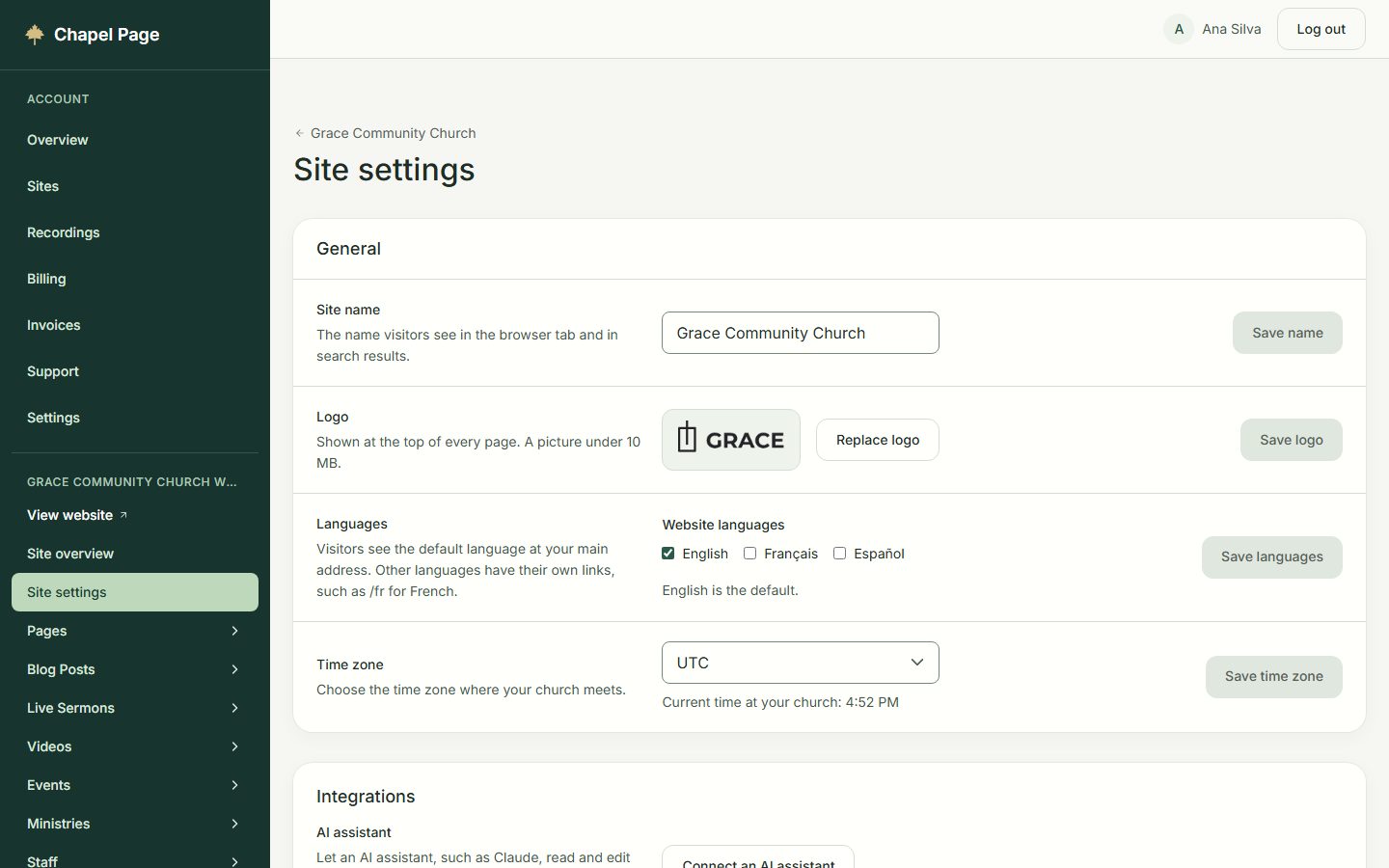
The Site settings screen, where the time zone is chosen

Which plan includes Events and the calendar

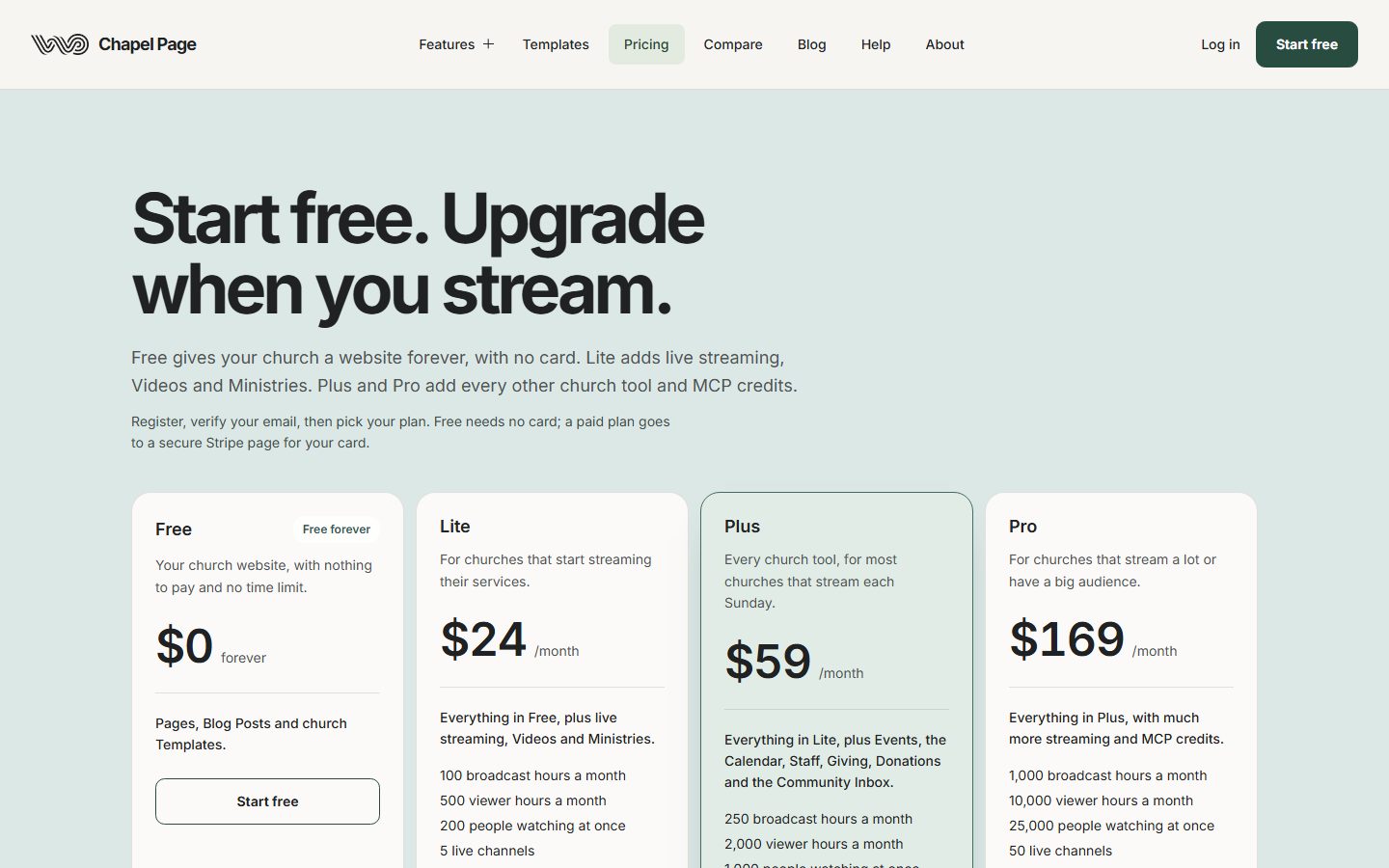
Events and the Calendar come with the Plus plan at $59 a month, and with Pro at $169. Lite at $24 adds live streaming, Videos and Ministries. Free is for the website itself. Every plan covers one Site.

If you move to a lower plan, Events and the Calendar pause and your Events are kept. They come back when you choose Plus or Pro again.

  • Free: Pages, Blog Posts and Template import.
  • Lite: adds live streaming, Videos and Ministries.
  • Plus: adds Events, the Calendar, Staff, Giving and the Community Inbox.
  • Pro: the same tools as Plus with larger streaming allowances.
The Chapel Page pricing page with the Free, Lite, Plus and Pro plans side by side
Compare plans

Questions

Can visitors add an Event to their calendar?

Yes. The Add to calendar button on each Event page downloads the Event as a calendar file that Apple Calendar, Outlook and Google Calendar can open. It carries the title, the start and end times and the place.

Can an Event repeat every week?

No. Each Event has one date. Create a new Event for each date, or list regular gatherings, such as a weekly prayer meeting, on a page of their own.

Can people register for an Event?

Not through the Event itself. Add a link to your registration form in the Event’s website field, or put a contact form on the page. Messages from the form arrive in your Community Inbox.

Do services appear on the calendar?

Yes. A Live Sermon with a date and time appears on the calendar next to your Events. Publish it, and it shows on your website calendar as well as in the dashboard.

Can we show only some Events on a page?

Yes. Give Events a category and filter the list, grid or slider by it. The Calendar widget itself shows every dated Event, so use a filtered list for a ministry’s own page.

What does the calendar look like?

A month grid with arrows to move between months. On phones, each day shows a dot, and the month’s Events and sermons are listed under the grid so nothing is too small to read.

Which time zone are times shown in?

Your Site’s time zone, which you set once in settings. Times stay in your church’s local time, exactly as you typed them, whoever is looking at the calendar.

What can an Event include?

Start and end times, location, organiser, phone, email, website, cost, a cover image, a photo gallery and a category. Fields you leave empty do not appear on the page.

Is there a calendar in the dashboard too?

Yes. The dashboard has the same month grid with your sermons and Events. Click a day to schedule one. Orange marks a draft and green marks a published item.

Do I have to update the calendar?

No. Publish an Event and it appears on the calendar and in every Event list. There is no separate calendar page to edit. To remove one, unpublish or delete the Event.

Which plan do we need for Events and the calendar?

Plus, at $59 a month, or Pro at $169. Lite at $24 does not include Events or the Calendar. Free covers Pages and Blog Posts only. Every plan covers one Site.

Can several volunteers add Events?

Yes. Every Member of your Account can create, edit and publish Events. Give each volunteer their own login. An Event is a short form, so it takes a few minutes to learn.

Does a scheduled Event show on the website?

Not until you Publish it. Scheduling puts an Event on the dashboard calendar as a draft. Visitors see only published Events, so you can plan ahead without anything appearing early.

Can an Event be in two languages?

Yes. If your Site has two languages, each Event can be written and published in each one, with its own text and address. The date, place and contact details are shared.

What happens to old Events?

A past Event’s page stays and says it is over. Lists include past Events, so unpublish or delete the ones you no longer want to show, or filter by category to keep a page tidy.

What happens to Events if we change plans?

On a plan without Events, the tool pauses but your Events are kept, not deleted. Choose Plus or Pro again and they come back as they were.

Put your church’s week on one calendar.

Free forever. Paid plans from $24 a month. No contract.

Start free