A finished church website on day one.
Each Template is a complete church website: pages, header, footer, colours, fonts and sample sermons, Events and ministries. Pick one and replace the samples with your church.
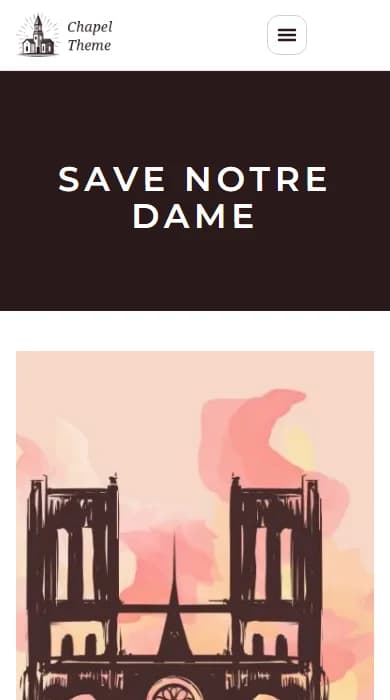 Church
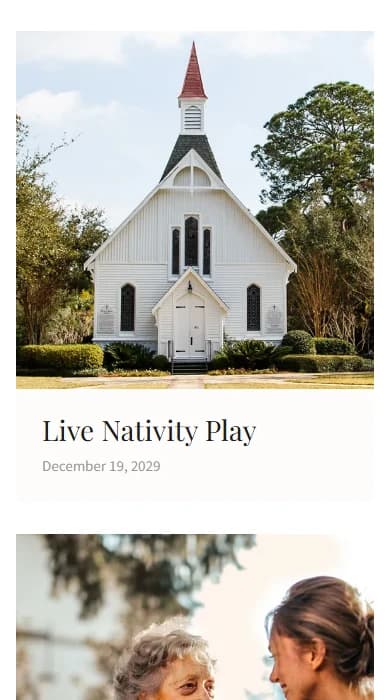 Orison
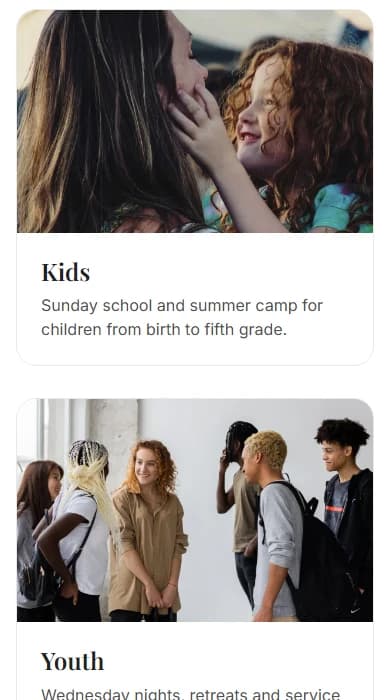 Christian
Choosing and importing a Template
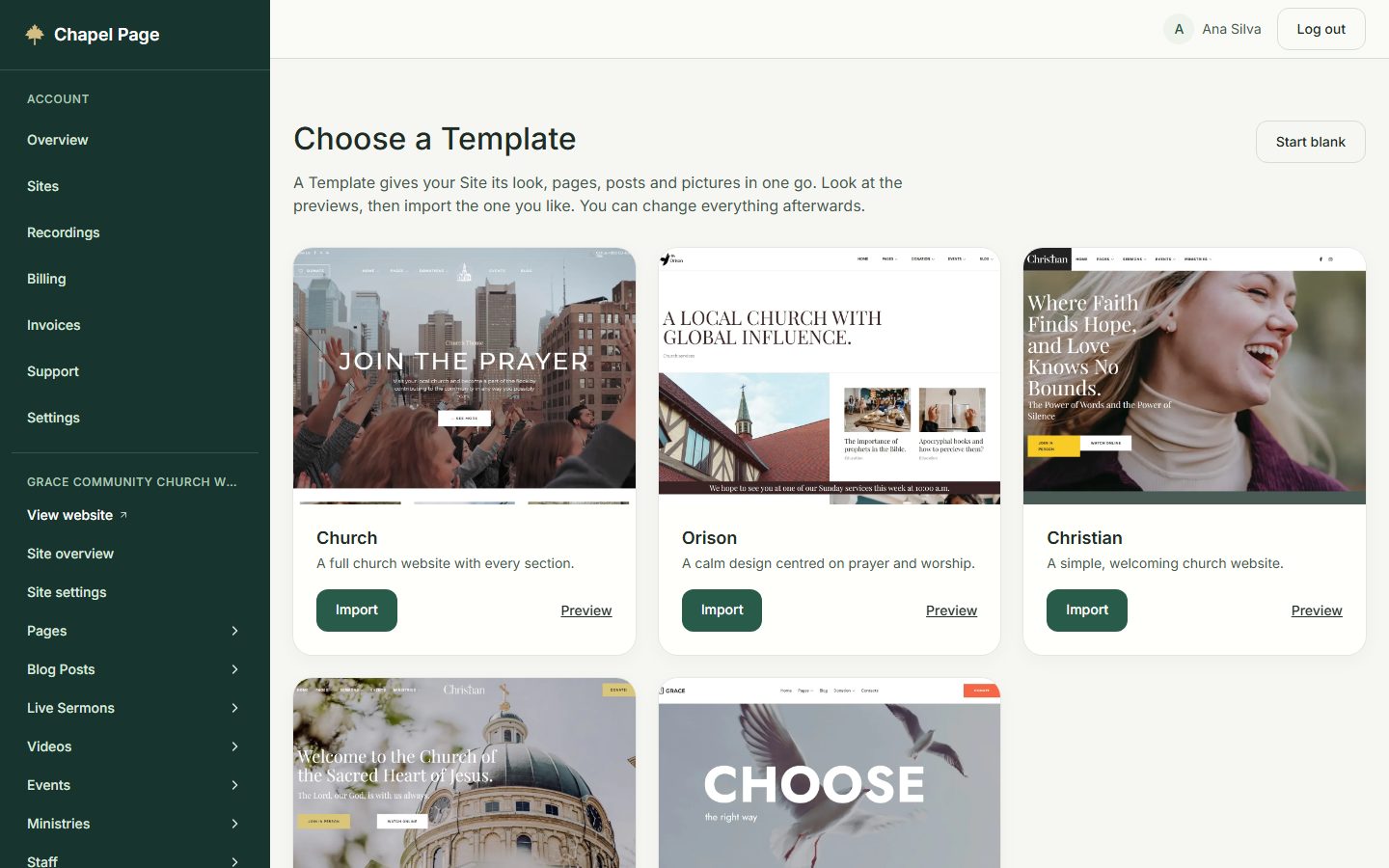
Right after you create a Site, the dashboard shows the Templates screen. Look at the cards, open the live demo of the ones you like, then press Import on the one you pick. Or choose Start blank and build your own pages.
Before anything happens, a confirmation tells you what is added and what is replaced. The Template’s pages and posts are added to your Site. Its colors, fonts, header, footer and languages replace yours.
- Your home page stays your home page.
- A page or post that has the same address as one of yours is added as a numbered copy, such as About 2, never over yours.
- If your Site is already public, you are warned that visitors will see the imported pages right away.
- The Site is not linked to the Template afterwards, so changes to a Template never touch your Site.
What it is and what it does
A Template is a finished church website that you copy into your own Site. It has the pages a church needs, a header and footer, colors and fonts that fit together, and sample sermons, Events and ministries. You pick one, then replace the samples with your own words and photos.
You do not start with a blank page and wonder what a church website should have. You start with a home page, a plan-your-visit page and the rest, already laid out, and you make it yours.
- Complete church websites, in different styles, made by the Chapel Page team.
- Pages, header, footer, colors and fonts come together.
- Sample sermons, Events, ministries and posts show how every list will look.
- Preview any Template before you choose it.
What it saves your church
Designing a church website from nothing takes weeks of decisions about layout, colors and which pages to have. A Template makes those decisions for you, and they are decisions that already work for churches.
A volunteer can finish a good first version of the website in a few evenings, rather than a few months. Your visitors see a clear, professional website, with service times and a way to plan a visit, much sooner.
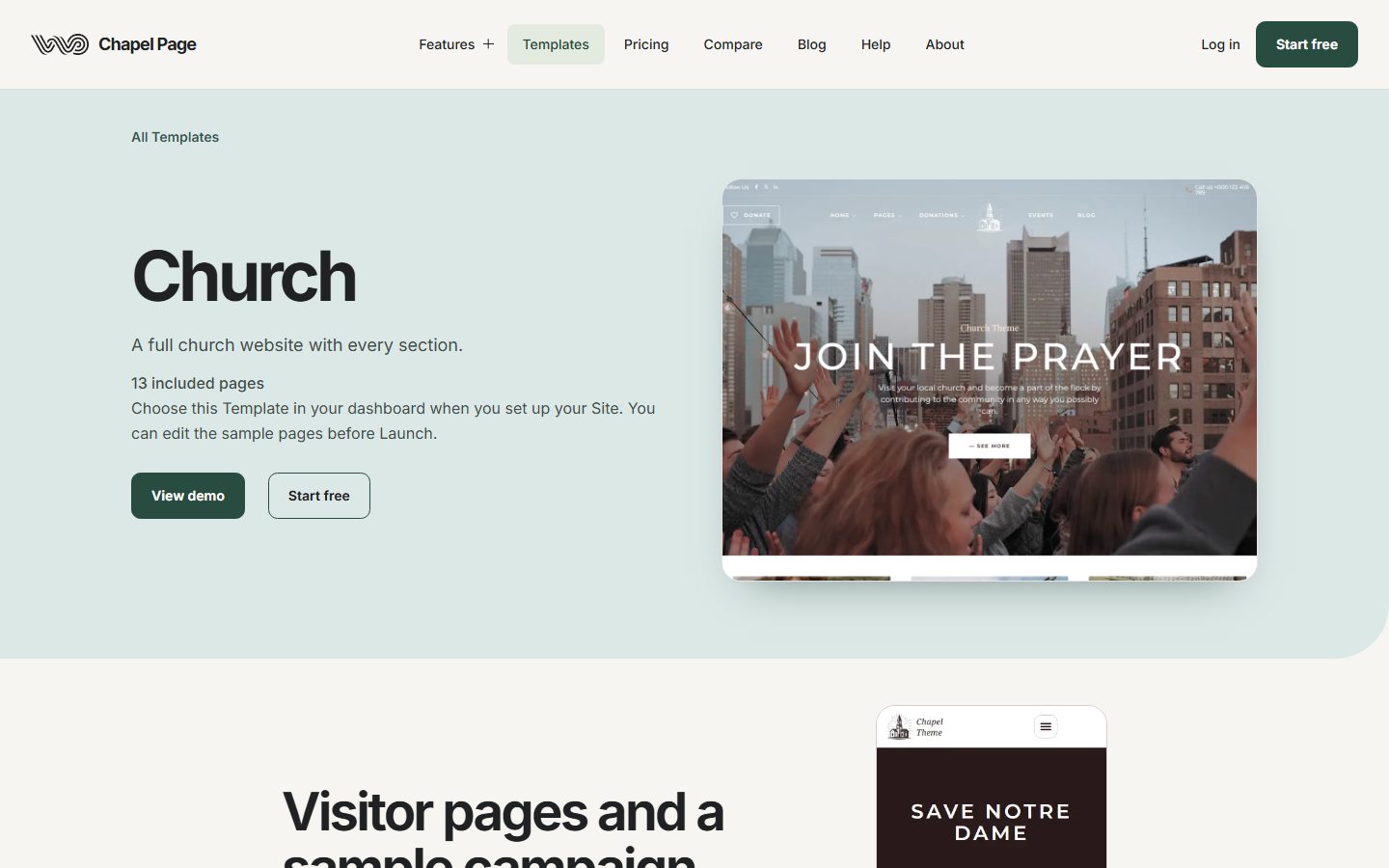
- Time saved: the pages, menu and layout exist on day one, so your work is writing and photos.
- Looks: colors, fonts and spacing are chosen to match, so the website does not look patched together.
- Less risk: sample content shows how each list and calendar will look, so you can see the result before you add your own.
What a Template includes
A Template is a copy of a whole Site: its design, header, footer, pages, posts and pictures. The pages vary by Template, but they usually include a home page, service times, ministries and a plan-your-visit page.
Each Template card on the Templates page says how many pages it includes and has a View demo link, so you can click through it as a visitor would. Several Templates are available, in styles from traditional to modern.
Browse church Templates- The main pages a church needs, such as a home page, service times, ministries and a plan-your-visit page.
- A header with a menu and a footer with your details.
- Colors, fonts and spacing that fit together.
- Sample sermons, Events, ministries, staff and Blog Posts, so every list and calendar shows how it will look.
Make it yours
After you import a Template, open it in the builder and change what you like. Replace the logo, the colors, the photos and the words. The Site keeps its own logo if it already has one.
A normal first week looks like this: add your logo and service times, replace the home page photo, rewrite the About page, delete the sample Events and the pages you will not use, then check the phone view.
How the builder works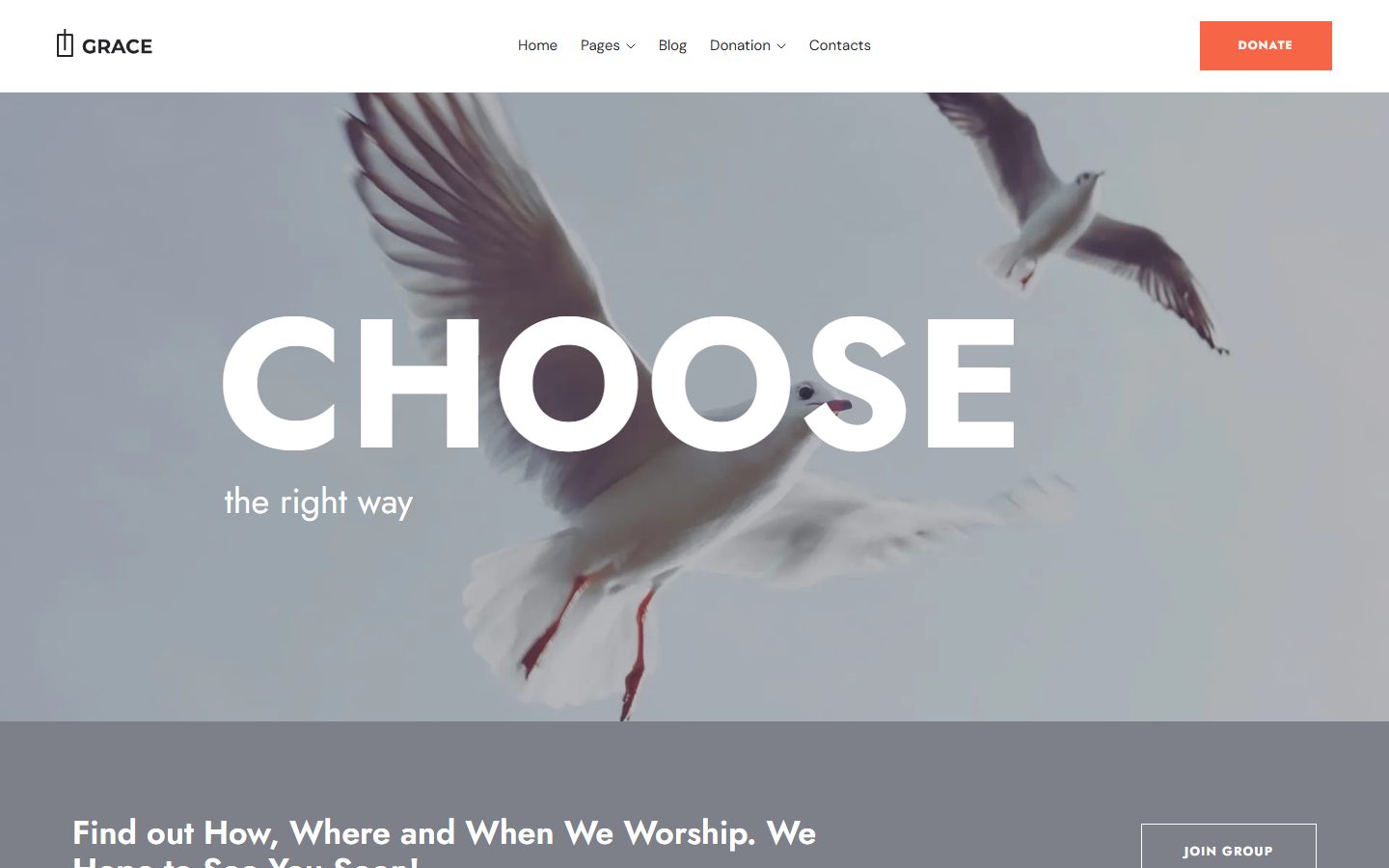
- Add your logo, photos, colors and service times.
- Replace the sample content with your own, or delete what you don’t need.
- Change any page with the drag-and-drop builder.
- Change the Site’s colors and fonts once and the whole Template follows.
Change Template later
You are not locked in. You can open the Templates screen from your Site’s overview at any time and import another Template, for example when the church wants a new look for a new season.
Importing another Template never deletes your pages. It adds the new Template’s pages after yours and replaces the Site’s design, header, footer and languages.
- Apply another Template from your Site’s Templates screen at any time.
- The new Template replaces your design, header, footer and languages. It adds its pages and content next to yours and never deletes your pages.
- Sample Event dates move forward by the days since the Template was made, so upcoming Events do not show as past.
- Videos that played a Recording do not come across. Your own Recordings and Channels are never copied.
Private until you Launch
A new Site is private, so you can work on your Template in peace. Visitors see a coming-soon page and search engines stay away until you Launch.
Use the Preview link to show the work to your pastor, board or team. When they are happy and you have replaced the samples, press Launch.
- Check your service times, address and contact details before you Launch.
- Delete or replace any sample Event or sermon you do not want visitors to see.
- Share a private preview link with your team before you Launch.
- After Launch, later changes stay drafts until you publish them.
What comes in on each plan
Templates are on every plan, including Free at $0, and they cost nothing extra. What comes in with a Template depends on your plan, because sample sermons, Events and the like belong to paid tools.
The Template’s pages and design always come in. Sample content comes in only for the tools your plan includes, so a Free Site is never filled with sections it cannot use.
Compare plans- Free ($0)
- pages, design, header, footer and Blog Posts.
- Lite ($24 a month)
- also sample Live Sermons, Videos and Ministries.
- Plus ($59 a month)
- also sample Events, Staff and Donations.
- Pro ($169 a month)
- the same as Plus. On a downgrade, tools pause and your content is kept.
Cost: Templates are included on every plan, including Free, so there is no design fee.
Questions
How many Templates are there?
Several church Templates in different styles, from traditional to modern. Each has its own pages, colors and fonts, and a live demo you can open before you choose. Browse them all on the Templates page, with the number of pages each includes.
Can I switch to another Template later?
Yes. Applying another Template replaces the design, header and footer, and adds its pages next to yours. Your existing pages stay, and your home page stays your home page. Open the Templates screen from your Site’s overview at any time.
Do I have to keep the sample content?
No. It shows how each list and calendar looks. Replace it with your own sermons, Events and ministries, or delete it. Sample Event dates are moved forward so they do not show as past, but you should remove any you do not want to show.
Can I save my own website as a Template?
No. Templates are made by the Chapel Page team. You can change everything on your own Site, so a Template is only your starting point. Your Site never stays linked to a Template.
Does a Template cost extra?
No. Every Template is included in every plan, including Free, with no extra fee. You pay only for a plan if you want tools such as live streaming, Events or giving, and your website itself costs nothing on Free.
Do Templates work on phones?
Yes. Every Template is built from the same widgets as the builder, so it adapts to phones and tablets. Switch the builder to Mobile to check each page, and fine-tune phone-only spacing and text size if you want.
Can I change a Template’s colors and fonts?
Yes. Change the Site’s colors and fonts once and the whole Template follows. You can also set a color or size on a single block. A Site that already has a logo keeps it when a Template comes in.
Can I remove pages a Template added?
Yes. Delete any page you don’t need from the Pages list in your dashboard. Deleting a page cannot be undone, so be sure before you confirm.
Can an AI assistant adjust the Template for us?
Yes, on Plus and Pro. Connect Claude or another AI assistant and ask it to change text or pages, or to apply a Template. Check the result in the builder and publish. It uses MCP credits, which are 100 a month on Plus.
Is hosting included?
Yes. Your website runs on Chapel Page at an address such as yourchurch.chapelpage.com. There is nothing to install and no separate hosting bill, on any plan, including Free.
Will importing a Template delete my pages?
No. The Template’s pages and posts are added to yours and never replace them. A page with the same address comes in as a numbered copy, such as About 2. Only your design, header, footer and languages are replaced.
Can I see a Template before choosing it?
Yes. Each Template card has a View demo link that opens a live sample, and a details page lists its pages and shows phone examples. The Templates screen in your dashboard has the same previews, so you can look before you import.
Which languages does a Template use?
The Template’s languages replace your Site’s languages when you import it. A Site can use English, French and Spanish, and a new Site starts with English and French. Check the language settings after importing, and edit one language at a time in the builder.
Are the photos in a Template mine to use?
A Template’s pictures are copied into your Account, so your Site keeps them even if the Template is removed later. They are sample pictures, so replace them with photos of your own church before you Launch.
How long does it take to get a Template ready?
A first version often takes a few evenings: add your logo and service times, rewrite the main pages, replace the sample photos and delete what you do not need. There is no deadline, because your Site stays private until you Launch.