Design every page your way.
Build any page from rows, columns and ready-made widgets. Set your own colours, fonts and spacing, and decide how each part looks on phones.
Drag onto the page
- Heading and text
- Image gallery
- Upcoming Events
- Give
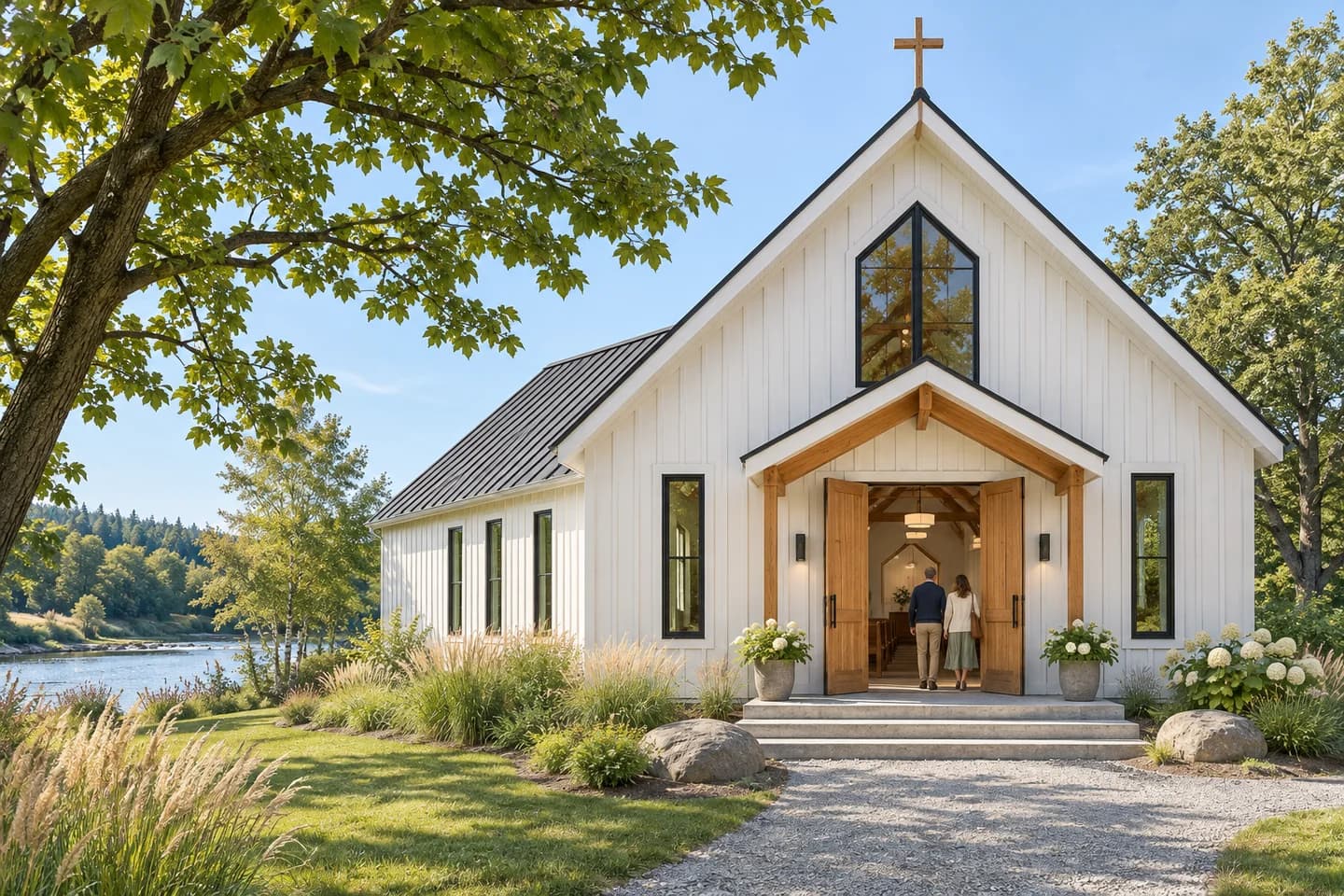 Sunday worship · 10:30 a.m.
34 ready-made widgets
Widgets are the pieces you drop into columns. They come in five groups in the elements panel, and a search box finds one by name. Each has settings on Content, Layout, Style and Advanced tabs.
Most are plain building blocks. The Content and Church groups are the ones made for churches: they show your own sermons, Events, ministries, staff and Blog Posts, take prayer requests and volunteer sign-ups, or accept gifts.
Basic: heading, text, image, button, icon, divider, spacer and video.
General: image box, icon box, icon list, accordion, tabs, counter, star rating, call to action, testimonials, social icons, gallery, image carousel and logo wall.
Content: list, grid, slider, a featured item and hand-picked items that show your sermons, Events, ministries, videos or Blog Posts.
Church: calendar, ministries, staff, forms and Give. Website: logo, menu and language switch for your header and footer.
What it is and what it does
Every page on your Site is made of three simple things: rows, columns and widgets. A row is a band across the page. It holds columns. Each column holds widgets, such as a heading, a photo, a button, a video or a list of your next Events.
You build a page by choosing a row layout, dragging widgets in, and filling in their settings in a side panel. It works like Elementor or Wix, and it is made for churches: sermons, Events, ministries, staff, forms and giving are built in as widgets.
- Rows hold one to four columns, and columns hold widgets.
- 34 ready-made widgets cover text, pictures, church content, forms and giving.
- Colors, fonts, spacing and backgrounds are yours to set.
- Every page, and your header and footer, use the same editor.
What it gives your church
Staff and volunteers get one tool that does everything. You do not need one product for text pages, another for the calendar, another for sermon lists and another for a giving button. You drop in the widget and it is done.
Visitors get pages that look the same on a phone as on a computer, and lists that never go stale, because a new sermon or Event is added once and appears wherever you placed a list.
- Time saved: a new Event is written once and shows on the home page, the calendar and its own page without more editing.
- Looks: your colors, fonts and photos on every page, so the website looks like your church, not like a template.
- Confidence: your page stays a draft until you publish it, so you can try ideas safely.
Rows and columns
Start a page by adding a row. The structure picker offers one, two, three or four equal columns, or a wide and a narrow column side by side. Use a wide column for a message and a narrow one for service times, for example.
A column can hold a row of its own, one level deep, for layouts such as a photo with a text box and two buttons beside it. You can move rows and widgets up or down, or drag them where you want them.
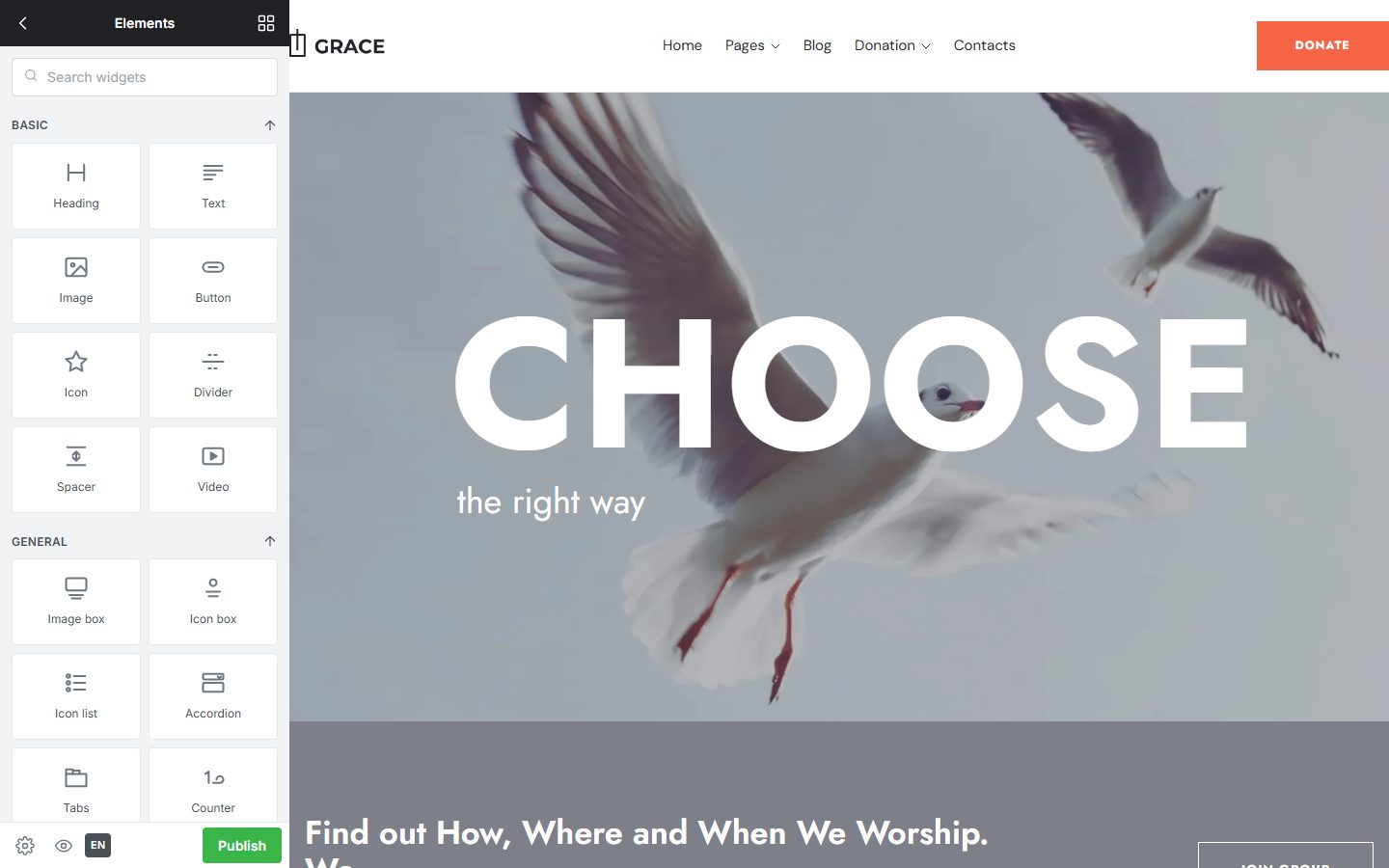
- Pick a row with one to four columns, or a wide and a narrow column.
- Put a row inside a column for more complex layouts.
- Set column widths separately for computers, tablets and phones, and change the order of columns on phones.
- Duplicate a widget to copy it, then change the copy.
Your own style
Set your look once for the whole Site, and every page follows. You choose four colors (primary, secondary, background and text), a heading font, a body font and how airy the spacing is: compact, regular or airy.
When one block needs to stand out, such as a bold Easter banner, you can give that block its own color, size, border or background. You are not stuck with the Template’s look.
- Site-wide colors, heading and body fonts, and spacing, set once and used everywhere.
- Any color and size on any element, with weight, letter spacing and line height for text.
- Backgrounds with a color, gradient, picture or overlay, and a background video on rows.
- Borders, rounded corners and shadows. Eight fonts are built in, including Inter, Playfair Display, DM Serif Display, Poppins and Montserrat, and they load from your own website.
Made for phones too
Most people open a church website on a phone, often on the way to a service. Every widget adapts to small screens by itself, and you can fine-tune the result without touching the computer layout.
Switch the builder between Desktop, Tablet and Mobile to see each view. Changes you make on phones, such as a smaller heading or a column order, apply to phones only.
- Change column widths, spacing, alignment and font size for phones or tablets only.
- Put a column first on phones, even if it sits second on a computer.
- Hide a row, column or widget on computers, tablets or phones.
- Check each view in the editor before you publish.
Header and footer
The header and footer appear on every page, so you build them once. They are made with the same editor as your pages, using three Site widgets: your logo, your menu and a language switch.
The menu is made from your published pages in the order you set in the dashboard, so it needs no separate upkeep. Menus can have dropdowns.
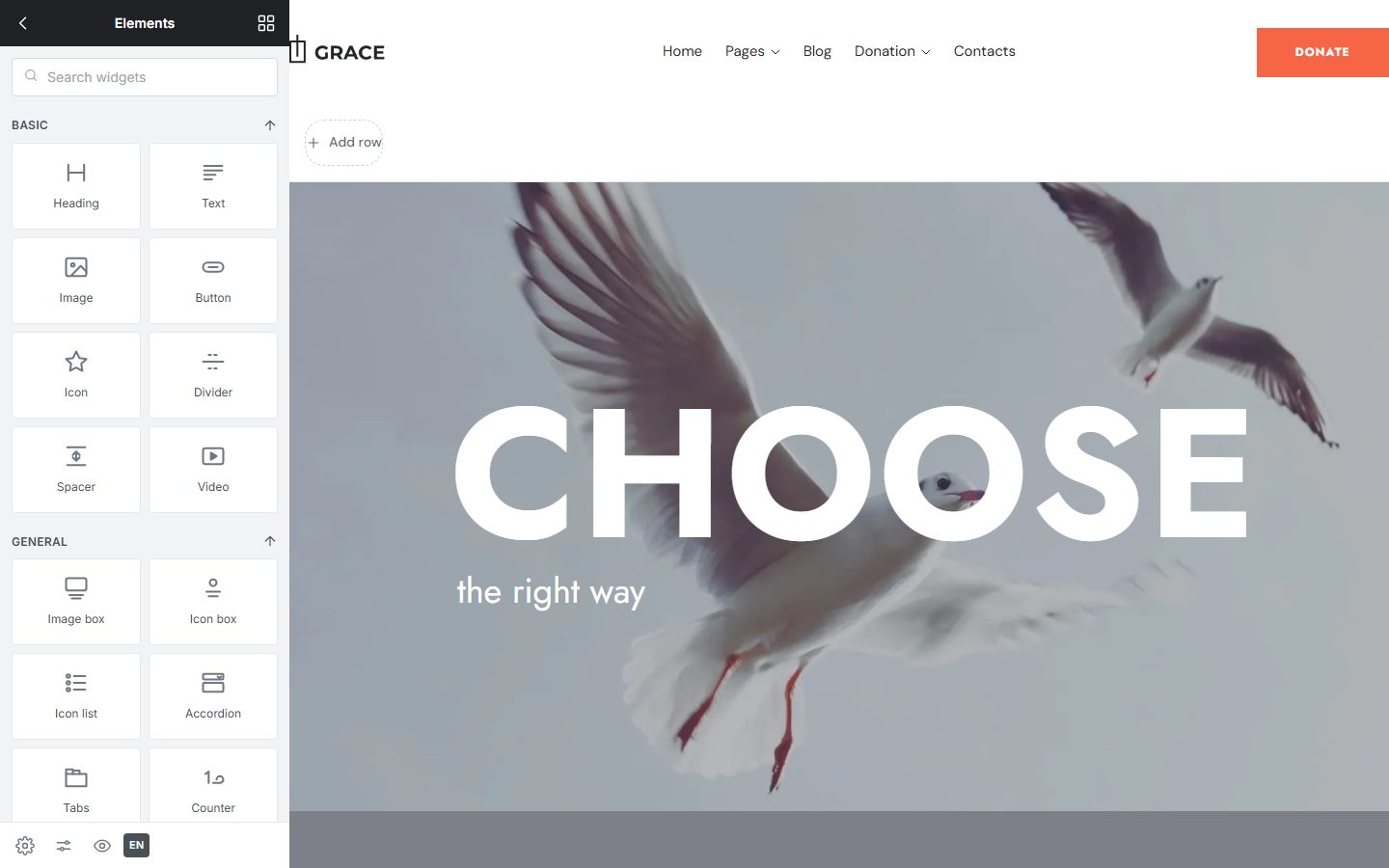
- Make the header sticky, or transparent over the top picture, with light or dark text.
- Give a page its own header or footer when it needs one, for example a landing page for Easter.
- Add contact details, social icons and links to the footer.
- Edit them at the header and footer screens of your Site, like any other page.
Content that updates itself
A content widget shows what you have already published, so you never type the same Event twice. You choose which section to show: Blog Posts, Live Sermons, Events, Ministries or Videos. The list then fills itself, and updates when you publish something new.
Choose how many items to show, the order (newest first, oldest first or by title), and, for a list, a category. Pick a card style and a layout of one to four columns, as a grid or a masonry layout. Or pick items by hand for a page such as “Our ministries”.
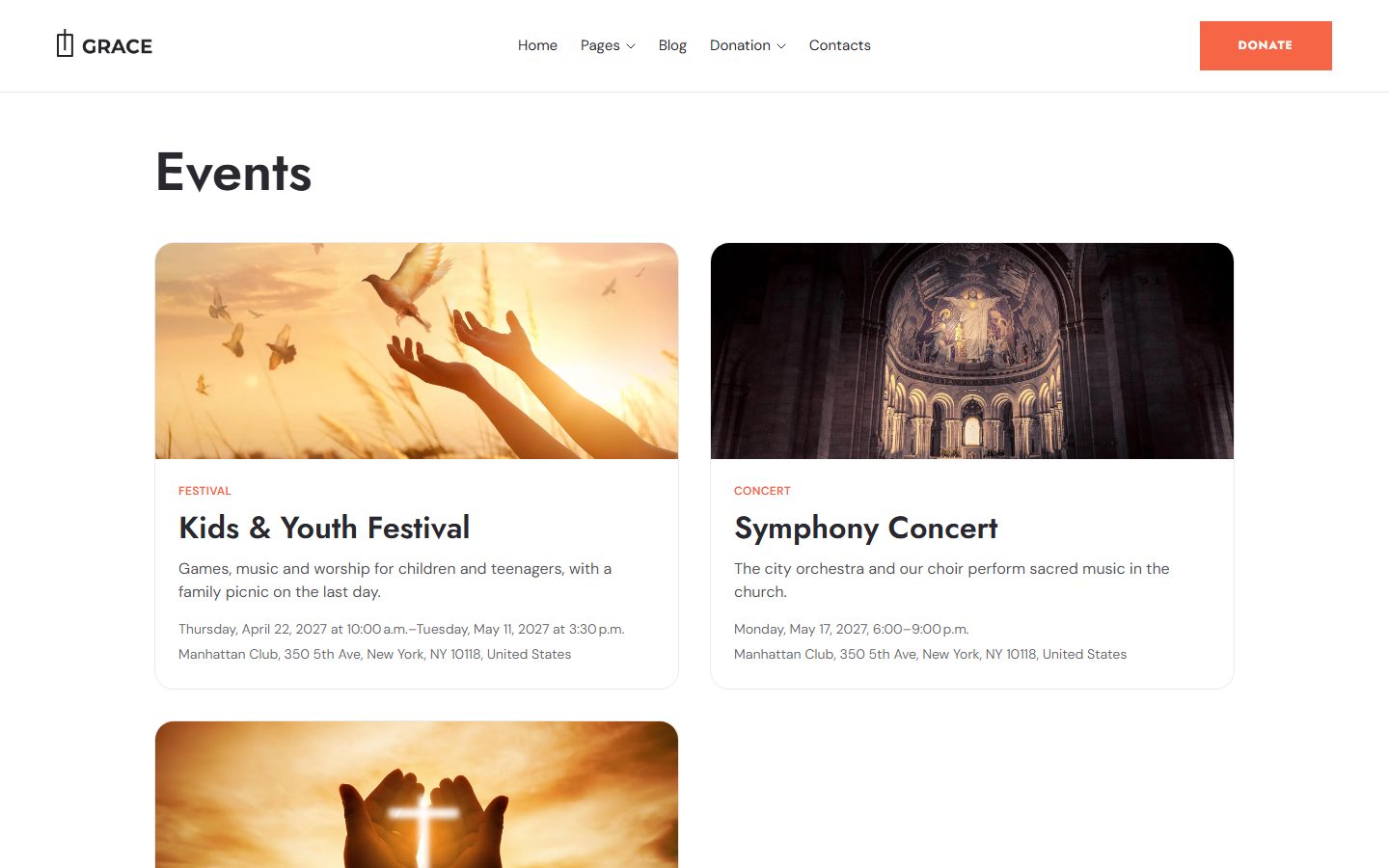
- Five content widgets: list, grid, slider, picked items and a featured item.
- Show or hide a card’s date, category, short text and “Continue reading” link.
- The Calendar widget shows upcoming Events and Live Sermons on a month view.
- Ministries and Staff widgets show your published profiles in the order you published them.
Which plan includes the builder and its widgets
The builder and all of its layout, text, picture and design widgets are on every plan, including Free at $0. You can build as many pages as you want, on a Free plan, with one Site.
Widgets that show a paid tool only work when your plan includes that tool. The builder still lets you place them, but visitors see nothing where the tool is missing, so they never meet a form or Give button that cannot work.
Compare plans- Free ($0)
- every layout and design widget, plus Blog Post lists and slider widgets.
- Lite ($24 a month)
- adds Live Sermon and Video lists, and Ministries.
- Plus ($59 a month)
- adds Events, the Calendar, Staff and Give.
- Pro ($169 a month)
- all of Plus, with higher streaming allowances. If you downgrade, widgets for tools you no longer have stop showing, and your content is kept.
Cost: widgets for Events, sermons, forms and giving are part of the builder, so you do not buy separate plugins.
Questions
Is it like Elementor or Wix?
Yes, it works the same way: drag rows, columns and widgets onto the page and change their settings in a side panel. The difference is that it is made for churches, so sermons, Events, ministries, giving and forms are built in as widgets, not add-ons.
Can I use my own colors and fonts?
Yes. Pick your colors and fonts once for the whole Site, and every page follows. You can also set any other color or size on a single element, so one banner can differ from the rest. Eight fonts are available, loaded from your own website.
Can a page look different on phones?
Yes. Set column widths, spacing, alignment and font sizes for phones separately, or hide a block on phones. Switch the builder to Mobile to see exactly how the page will look. Changes made on phones do not change the computer layout.
Can I add a YouTube video?
Yes. The Video widget plays a YouTube or Vimeo address, or one of your own Live Sermons or Videos. Paste the link, or pick the sermon, in the widget’s settings. Playing a Chapel Page sermon needs a plan with live streaming, which starts at Lite.
Is there an undo button?
Not in the builder. Page changes stay as a draft until you publish, so visitors never see a mistake you are still fixing. The builder saves the draft as you work, so test your change, look at it in Desktop and Mobile, then press Publish.
Which fonts can we use?
Seven heading fonts and six body fonts, including Inter, Playfair Display, DM Serif Display, Poppins and Montserrat. They load from your own website, not from an outside service. You choose them once for the whole Site, and can set a different face on one element.
How many widgets are there?
34, from headings, images and buttons to sermon lists, calendars, giving and forms. They are in five groups in the elements panel: Basic, General, Content, Church and Site. A search box at the top finds a widget by name.
Can I copy a widget?
Yes. Duplicate any widget and change the copy. This is the quickest way to make a row of similar items, such as three staff cards or three service-time blocks, with the same look.
Can I put columns inside a column?
Yes. A column can hold a row of its own, one level deep. Use it for a layout such as a photo on the left and, on the right, a heading with two small columns of text. You cannot nest another row inside that inner row.
Is my work saved as I go?
Yes. The builder saves your draft a moment after each change and again when you leave the page. It shows Saving, Saved or Not saved in the top bar. Visitors only see the page after you press Publish.
Can I show only some of my Events or posts on a page?
Yes. A content widget lets you choose the section, how many items, the order, and a category. Or use the picked-items widget to choose each item by hand, which suits a page such as “Our ministries” or “Featured sermons”.
Do I need a paid plan to use the builder?
No. The builder is on every plan, including Free at $0, with no card. You only need a paid plan for a widget that shows a paid tool: live streaming from Lite, and Events, forms, Staff and giving from Plus.
What happens to widgets if we downgrade?
A widget for a tool your plan no longer includes stops showing to visitors, so nobody meets a form or a Give button that does not work. The page stays, your content is kept, and the widget shows again when you upgrade.
Can a volunteer with no tech skills use it?
Yes. You click what you want to change, type in a field and watch the page change. Most settings are plain words such as Room above and Text size. A volunteer who changes text and photos on a page never needs to touch the layout.
Can I make an Easter landing page?
Yes. Create a page, give it a row with a big picture, a heading and a button, and add a Calendar or Event list. A page can have its own header or footer, for example a simpler one without the full menu.