Go live without a crisis.
Stream your Sunday service straight onto your church website, from a browser or from OBS. No ads, no suggested videos, no extra service to set up.
Sample recording from Life.Church. The message is in English.
Watch on Life.ChurchTwo ways to go live
Every Live Sermon has a broadcast screen in your dashboard. From that one screen you can go live with the camera on a laptop, or send a picture from a mixer, a camera switcher or a computer running OBS. Most churches start with the laptop and move to an encoder later, when they want better sound or more than one camera.
Neither way needs an account on another streaming service. You never copy a link into a different website. The picture goes straight to the sermon’s page on your church website.

Browser: open the Live Sermon’s broadcast screen, allow camera and microphone access, check the preview, then go live. Nothing to install.

OBS or another encoder: open the encoder setup, copy the stream server and key into OBS, vMix or a hardware encoder that streams over RTMP, then start streaming from there.
Each Live Sermon has its own Channel, so this Sunday’s service never mixes with last week’s.
Use Chrome or Edge for the best webcam compatibility.
What it is and what it does
Live streaming lets your church broadcast a service as it happens, and shows it to anyone on the sermon’s page of your own website. You press go live on a screen in your dashboard, and people at home, in the hospital or on vacation watch the same service on their phone or computer.
It is built into Chapel Page. There is no second service to sign up for, no player code to paste and no link to send to the person who updates the website. The video, the title, the date and your message notes sit together on one page.
- Go live from a webcam in your browser, or from OBS or a hardware encoder.
- The service plays on the sermon’s page of your church website, with no ads.
- The broadcast is recorded for you, so people can watch it later.
- After each service you see how many people watched and for how long.
Your service, on your website
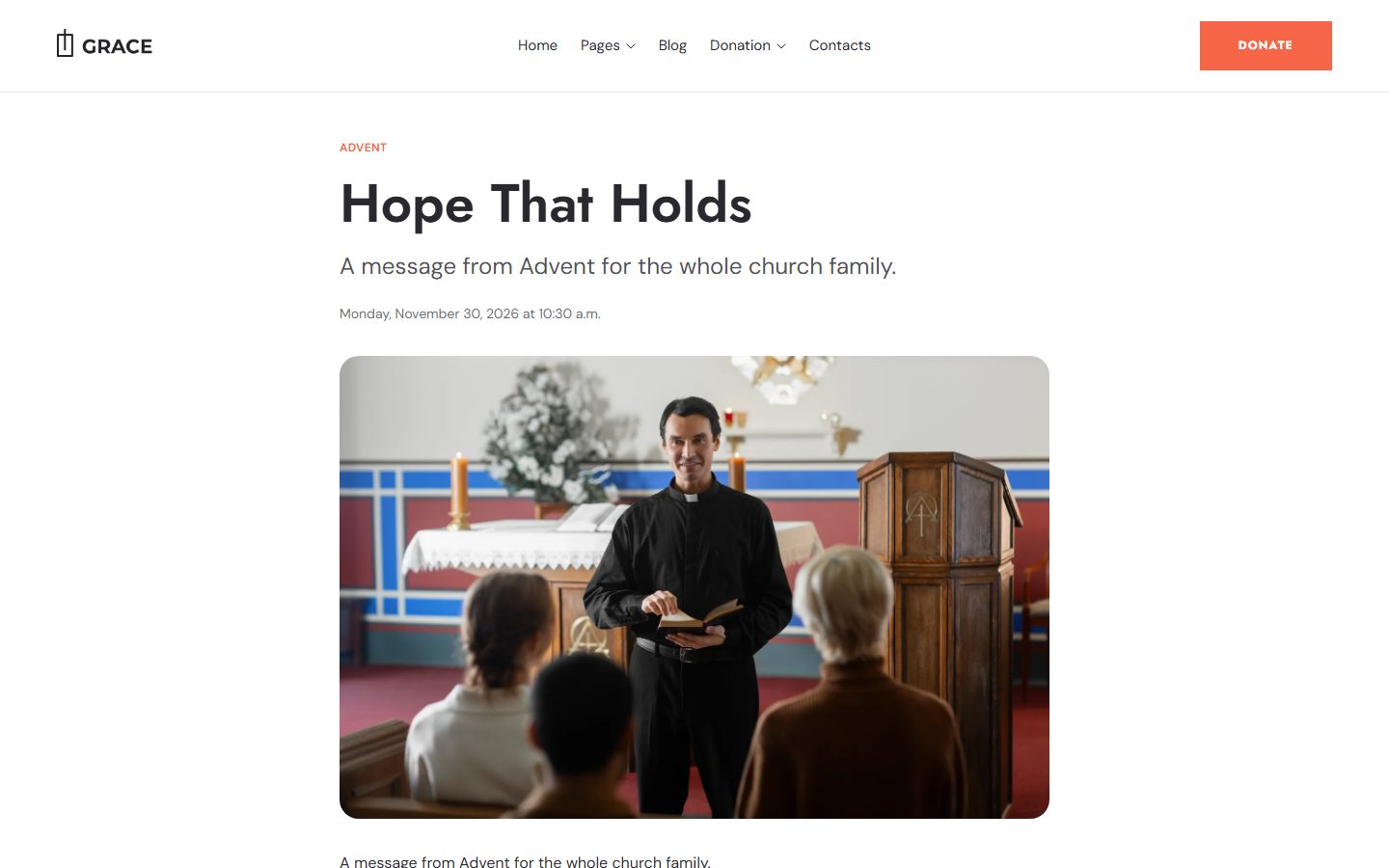
The live picture plays on the sermon’s own page, next to the title, the date and the text you wrote. Visitors do not leave your website to watch. There are no ads and no suggested videos from other channels.
Your stream plays only on your own website. That keeps it from being copied into someone else’s page, and it keeps newcomers on the site where they can also find your times, your ministries and your contact details.
- Autoplay: start playing as soon as the page opens.
- Start muted: begin without sound, which many phones require for autoplay.
- Show the number of viewers: the player shows how many people are watching.
- Save these settings once on the broadcast screen. They apply to every broadcast of that sermon.
Streaming hours, explained
Streaming is measured in two kinds of hours each month. Broadcast hours are the time you are on air. Viewer hours are the time people spend watching, live or recorded. Both refill every paid month.
Most churches never run out. If you do, we email the owner of the Account when 80% and when all of either kind is used. Then the player tells visitors that the video is not available, until the next month starts or you add an hour pack.
Compare streaming hours by plan- Lite: 100 broadcast hours and 500 viewer hours. Plus: 250 and 2,000. Pro: 1,000 and 10,000.
- Example: about 30 people watching a 90-minute service each Sunday uses roughly 200 viewer hours a month. Lite covers it. About 100 people watching needs Plus.
- An hour pack adds 100 broadcast hours and 500 viewer hours for $36, paid once.
- YouTube and Vimeo links you add to a sermon play from those services and use none of your hours.
For those who missed it
Every Channel records by default, because most churches want last Sunday’s service online on Monday. The recording is saved to your Recordings library when the broadcast ends. You can switch recording off for any one Live Sermon on its broadcast screen.
A recording does not appear on the sermon’s page by itself. After the service, open the sermon and pick the recording in the field called “Or play a recording”. The same page, with the same link you shared on Sunday, then plays the service again.
See the video library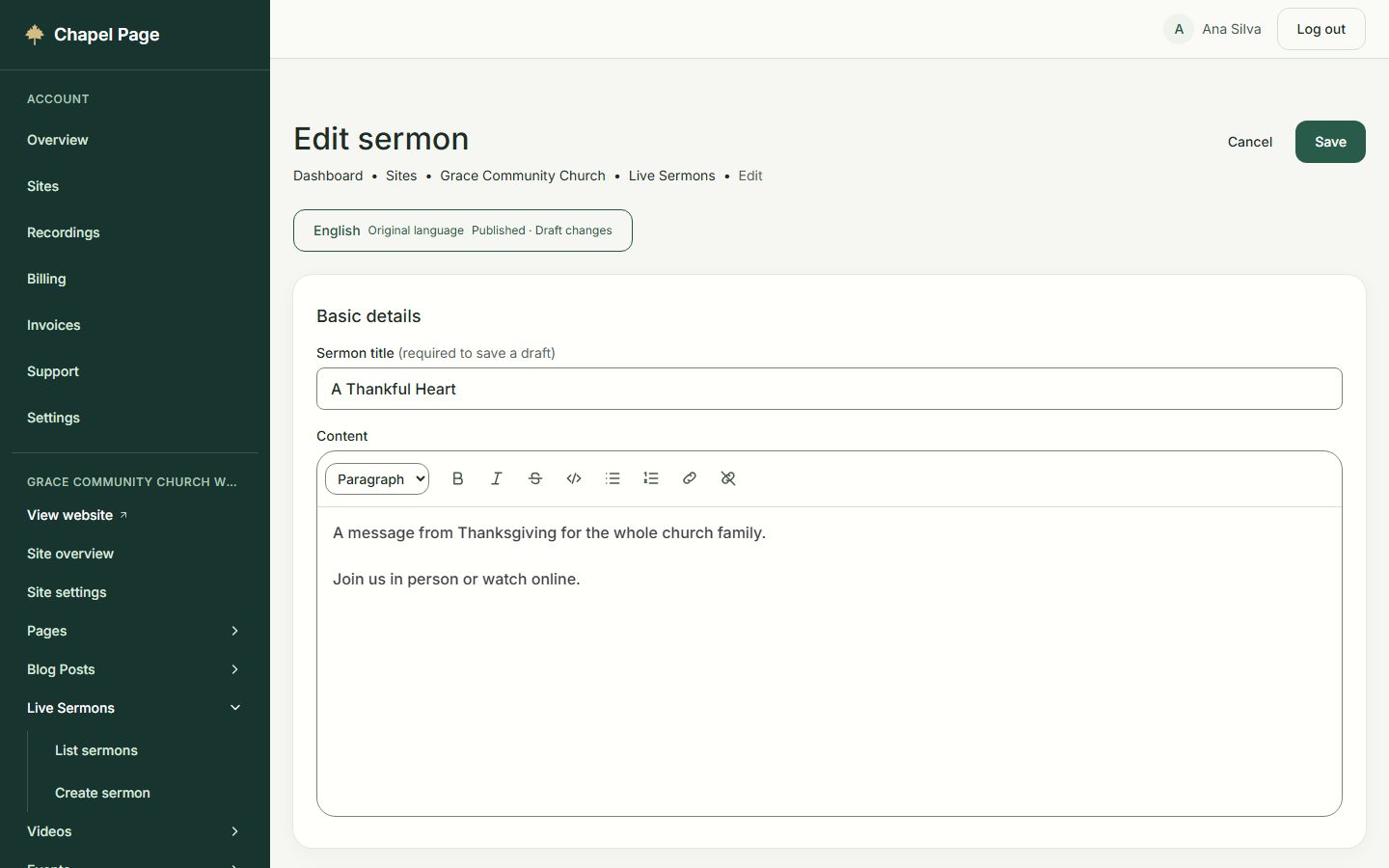
- Recordings are kept in one library, shared with the videos you upload yourself.
- Pick the recording on the sermon, save, and visitors see it on the same page.
- Upload your own videos too: MP4 or MOV files up to 50 GB.
- Rename, download or delete a recording whenever you like.
See how it went
Under the broadcast screen is a list of every past broadcast of that sermon. It helps you answer the questions a pastor or a board asks after a few weeks: how many people watched, how long did they stay, and did the numbers grow.
The numbers are totals, not names. You see how big the audience was, not who was in it.
- Date and time of each broadcast, in your Site’s time zone.
- How long it ran, and your peak number of viewers.
- Viewer hours, the total time people spent watching it.
- A link to the recording saved from that broadcast.
What it gives your church
People who cannot come on Sunday are part of your church. A grandmother in another city, a shift worker, a family with a sick child: they watch with you. Many first-time visitors also watch online before they ever walk in, so the stream is often their first look at your church.
For your team, the weekly job gets shorter. One Live Sermon holds the stream, the recording and the page. Nobody posts links to three places or uploads a file on Monday.
- Less volunteer time: one screen, the same steps each week, and no separate video website to manage.
- Members who miss Sunday catch up on the same page, on the same link.
- Visitors see your church, not ads or suggested videos from other channels.
- You know your reach, with peak viewers and viewer hours after each service.
Set it up before Sunday, then press one button
A service starts as a Live Sermon. You give it a title, a short description, a cover picture and a date and time, the same way you write a Blog Post. The date puts it on your dashboard calendar, so the whole team can see when it happens.
The first time you open the sermon’s broadcast screen, Chapel Page makes its Channel for you. There is nothing to configure on another site. Do this during the week, so that on Sunday you only press one button.
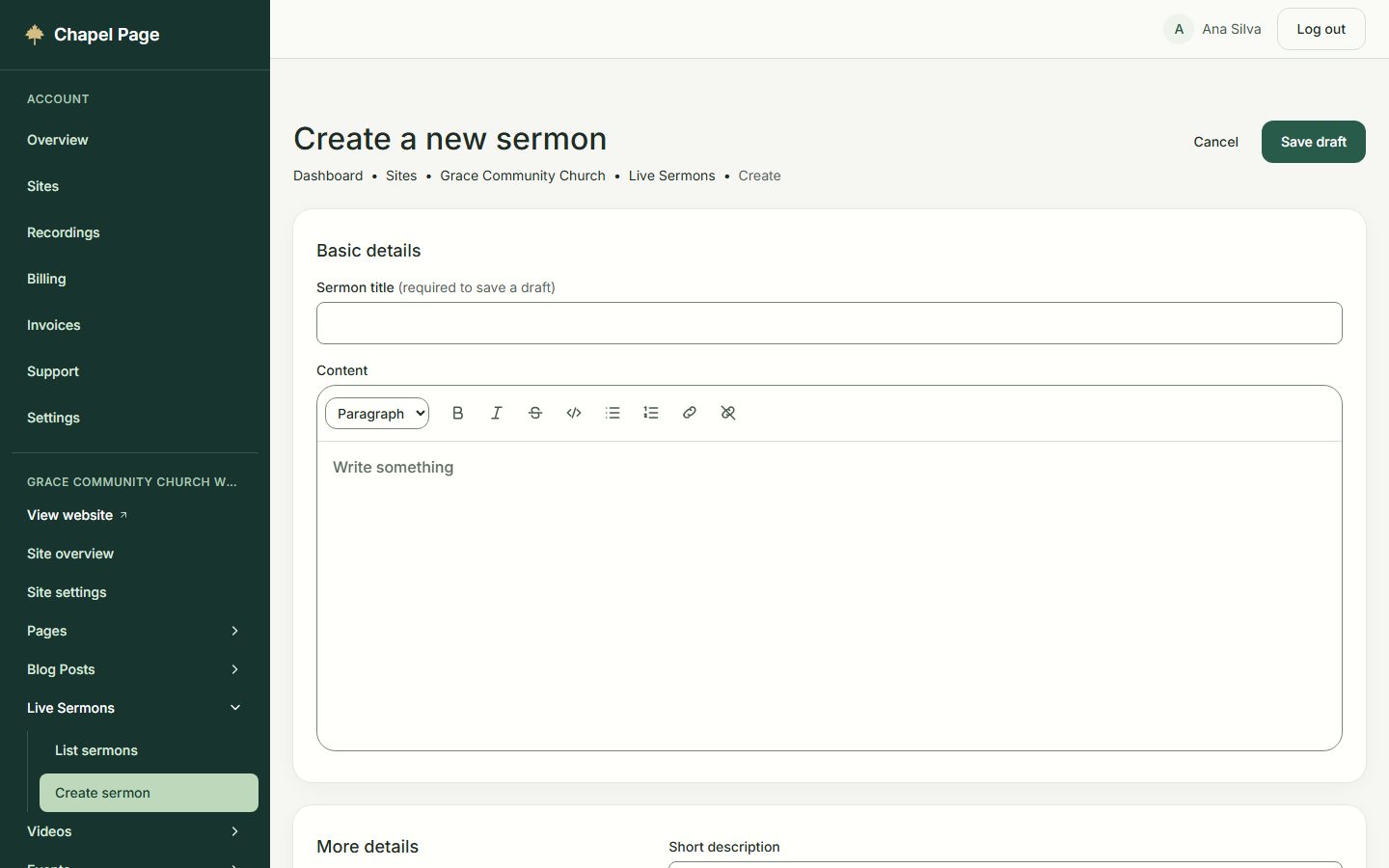
- During the week: create the Live Sermon with its title, description, cover, date and time. The date puts it on your calendar.
- Press Publish when the page is ready. Until then it stays a draft that only your team can see.
- Open the broadcast screen once before Sunday to make the Channel and try your camera.
- Sunday morning: open the screen 15 minutes early, check sound and picture in the preview, then go live.
- After the service: end the broadcast, then pick the recording on the sermon so the page plays it again.
Which plan includes live streaming
Live streaming starts with the Lite plan at $24 a month. Free does not include it. Plus is $59 and Pro is $169, with more hours and more Channels that can be live at the same time. Every plan covers one Site.
If you move to a lower plan, or stop paying, streaming pauses but your content stays. Your Live Sermons, recordings and pages are not deleted, and they come back when you pick a plan with streaming again.
See plans and prices- Lite
- 100 broadcast hours, 500 viewer hours, 5 Channels live at once, 25 recording hours.
- Plus
- 250 broadcast hours, 2,000 viewer hours, 15 Channels live at once, 100 recording hours.
- Pro
- 1,000 broadcast hours, 10,000 viewer hours, 50 Channels live at once, 500 recording hours.
The pricing page lists the audience each plan is sized for: 200 at once on Lite, 1,000 on Plus and 25,000 on Pro.
Cost stays clear: Lite is $24 a month with streaming, recording and hours included.
Questions
Do we need special equipment?
No. A laptop with a webcam is enough to start. When you want better sound or several cameras, connect a mixer or OBS and stream from there. Start simple, then improve one thing at a time.
Does it work with OBS?
Yes. Open the encoder setup on the broadcast screen and copy the stream server and key into OBS, vMix or a hardware encoder that streams over RTMP. Then start streaming from the encoder as usual.
We already have a YouTube audience. Do we lose it?
No. Keep your channel. Chapel Page makes your website the home of your service, so newcomers find it where they look first. You can also put a YouTube link on a sermon page instead of streaming through Chapel Page.
What happens if we run out of hours?
The player shows that the video is not available until the next month starts or you add an hour pack for $36. We email the owner of the Account at 80% and again at 100%, so it rarely comes as a surprise.
Is the service recorded automatically?
Yes. Recording is on by default for every Live Sermon, and the recording is saved to your library. Switch it off for a sermon you don’t want to keep. To show it on the sermon’s page, pick it in the sermon.
Can people watch on their phones?
Yes. The player works in any modern browser on phones, tablets and computers. Nobody has to install an app or make an account to watch your service.
Do we still need a streaming licence?
Yes. Streaming worship songs needs a licence, such as the CCLI Streaming Licence, whatever platform you use. Chapel Page removes ads and automated takedowns on your own website. It does not replace the licence.
What counts as a streaming hour?
Broadcast hours are the time you are on air. Viewer hours are the time people spend watching, live or recorded. Lite includes 100 broadcast and 500 viewer hours a month, Plus 250 and 2,000, and Pro 1,000 and 10,000.
Which browser should we use to go live from a webcam?
Chrome or Edge work best with webcams. Choose automatic quality, 1080p or 720p before you start. If your internet upload is slow, pick the lower quality so the picture stays smooth.
Can we show how many people are watching?
Yes. Switch on “Show the number of viewers” in the settings under the broadcast screen and the player shows it. After the service, the same screen lists your peak viewers and viewer hours.
Can we embed the stream on another website?
No. The stream plays on your Chapel Page website, so people come to your church’s home online. Share the sermon page link instead, in an email, a text message or a social media post.
Who can go live, and can a volunteer with no tech skills do it?
Any Member of your Account can open the broadcast screen. A volunteer follows the same steps each week: open the screen, check the preview, press go live, and end the broadcast afterwards. Write the steps on one page.
Can we schedule a service to start by itself?
No. You can give a Live Sermon a date and time, and it shows on your calendar, but it does not start or publish by itself. Someone presses go live at the right moment.
How many services can be live at the same time?
That depends on your plan: 5 Channels on Lite, 15 on Plus and 50 on Pro. Most churches stream one service at a time. Past the limit, a new broadcast will not start until another one ends.
What if the internet drops during the service?
Open the same broadcast screen and start again. The Channel and the sermon page stay the same. A broadcast with no signal ends by itself after 30 minutes, so a forgotten stream does not keep running.
What happens to streaming if we change plans?
Streaming needs Lite or higher. On a lower plan, or when payment stops, streaming pauses but your sermons and recordings are kept, and they come back when you pick a plan with streaming again.