Giving and donations
Online giving and Donations
Connect your church's Stripe account, set your Funds, add a Give widget, raise money for a cause with a Donation page, and follow every gift in Payments.
Online giving lets people give to your church from your website with a card, once or every month. The money goes straight into your church's own Stripe account. Chapel Page takes no fee on gifts; only Stripe's card processing fee applies.
This guide walks through every step, from connecting Stripe to reading the gifts list at the end of the year. Most churches finish the setup in one sitting.
Before you start
You need three things:
- A Plus or Pro plan. Giving, Donations and Payments come with Plus ($59 a month) and Pro ($169 a month). Free and Lite do not include them. See Choose a plan.
- A Stripe account for your church, or the details to create one: the church's legal name, address, tax number (EIN in the US) and the bank account gifts are paid out to. Stripe asks for these, not Chapel Page.
- A Launched Site. Donors can only give on a Site that is Launched. You can set everything up before Launch; gifts start once it is live. See Preview and Launch your Site.
How giving works
- A visitor opens your Give page or a Donation page and picks an amount, one-time or monthly, and a Fund.
- They press Give (or Donate Now on a Donation page) and go to Stripe's secure Checkout page, where they type their card. Card details never touch your Site or Chapel Page.
- Stripe charges the card on your church's Stripe account and emails the donor a receipt.
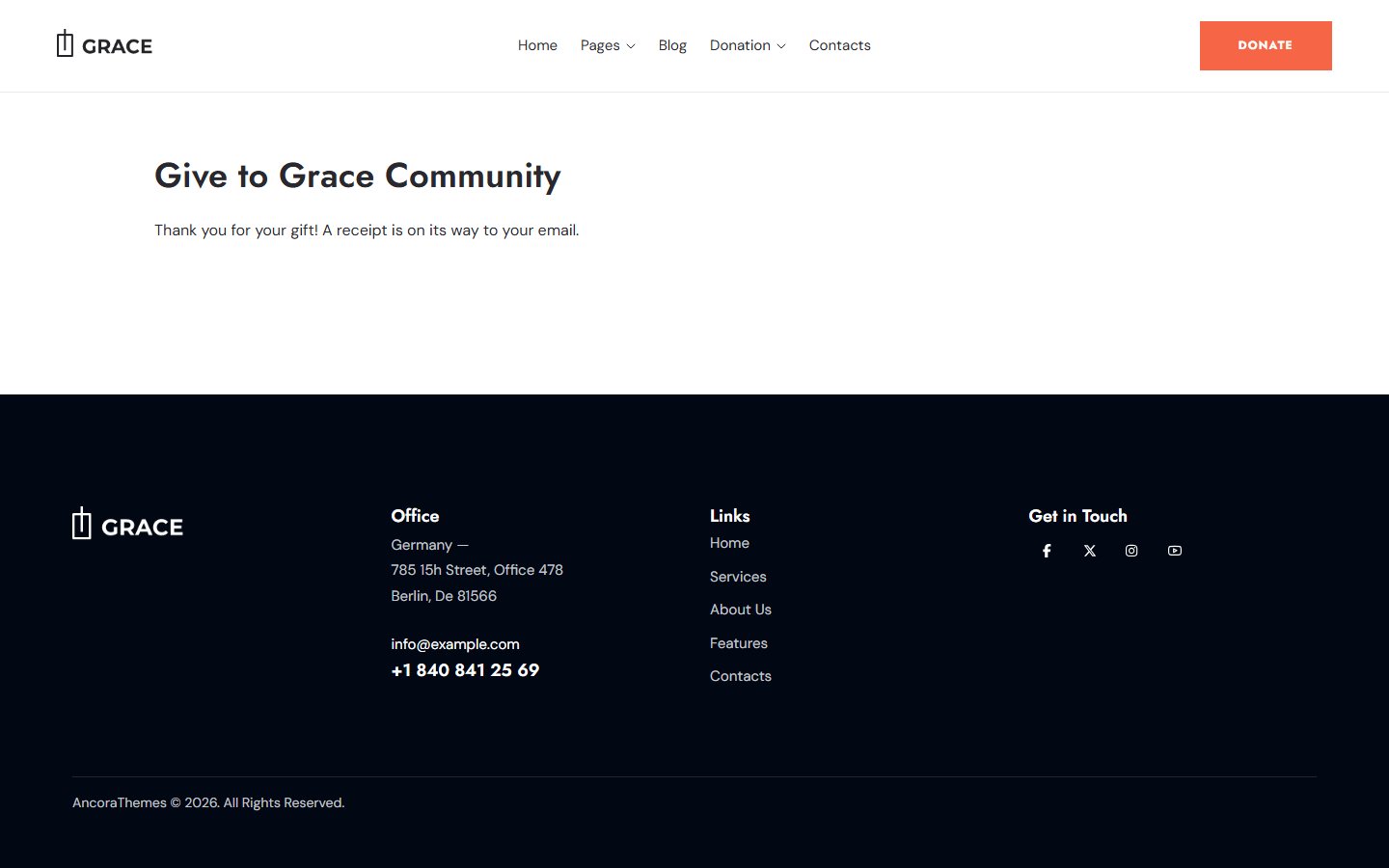
- The donor comes back to your Site, where a thank-you line greets them.
- Stripe tells Chapel Page the gift was paid, and it appears in Payments in your dashboard within seconds.
- Stripe pays your balance out to your church's bank account on its usual schedule.
Step 1: Connect your church's Stripe account
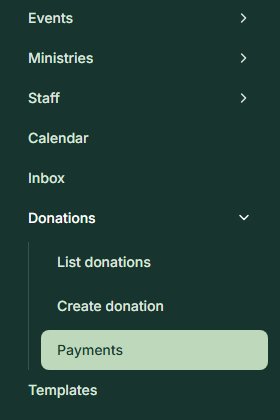
In the dashboard sidebar, under your Site, open Donations, then Payments. (The same group has List donations and Create donation, used in Step 6.)
Before Stripe is connected, the screen explains giving and shows a Connect Stripe button.
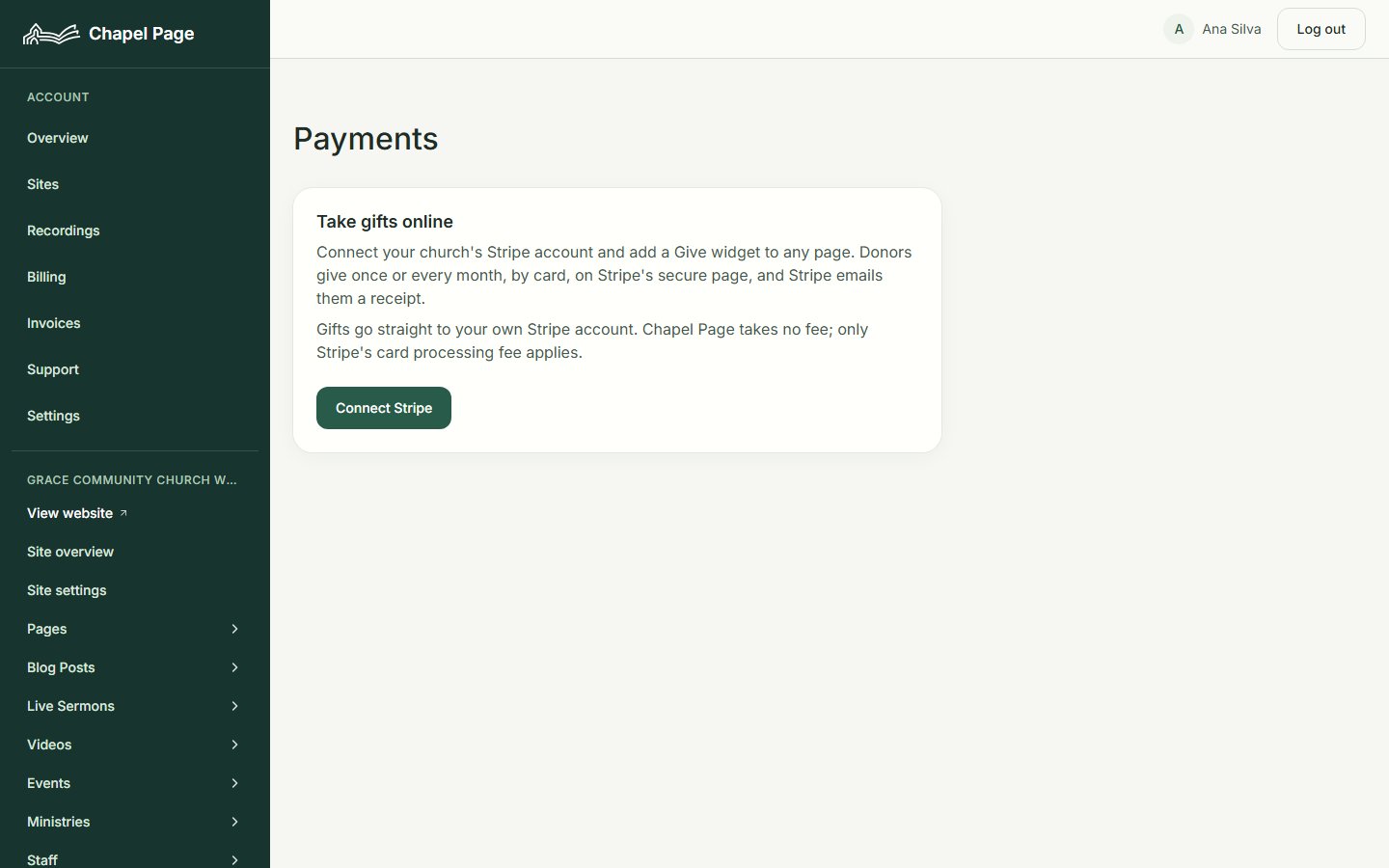
- Press Connect Stripe. You go to Stripe's own page.
- Log in to your church's Stripe account, or create one there. Stripe asks for the church's details and bank account.
- Approve the connection. Stripe sends you back to the Payments screen, which now shows your gifts list.
Good to know:
- You log in on Stripe's page, so Chapel Page never sees your Stripe password or your API keys.
- Gifts are taken in your Stripe account's default currency (for example US dollars for a US account). Amounts on your Site are shown in that currency.
- If you cancel on Stripe's page, or Stripe refuses the link, you come back to Payments with the message "Your Stripe account was not connected. Please try again." Press Connect Stripe again.
- Each Site connects one Stripe account.
Step 2: Read the Payments screen
Once Stripe is connected, Payments is where your treasurer follows giving.
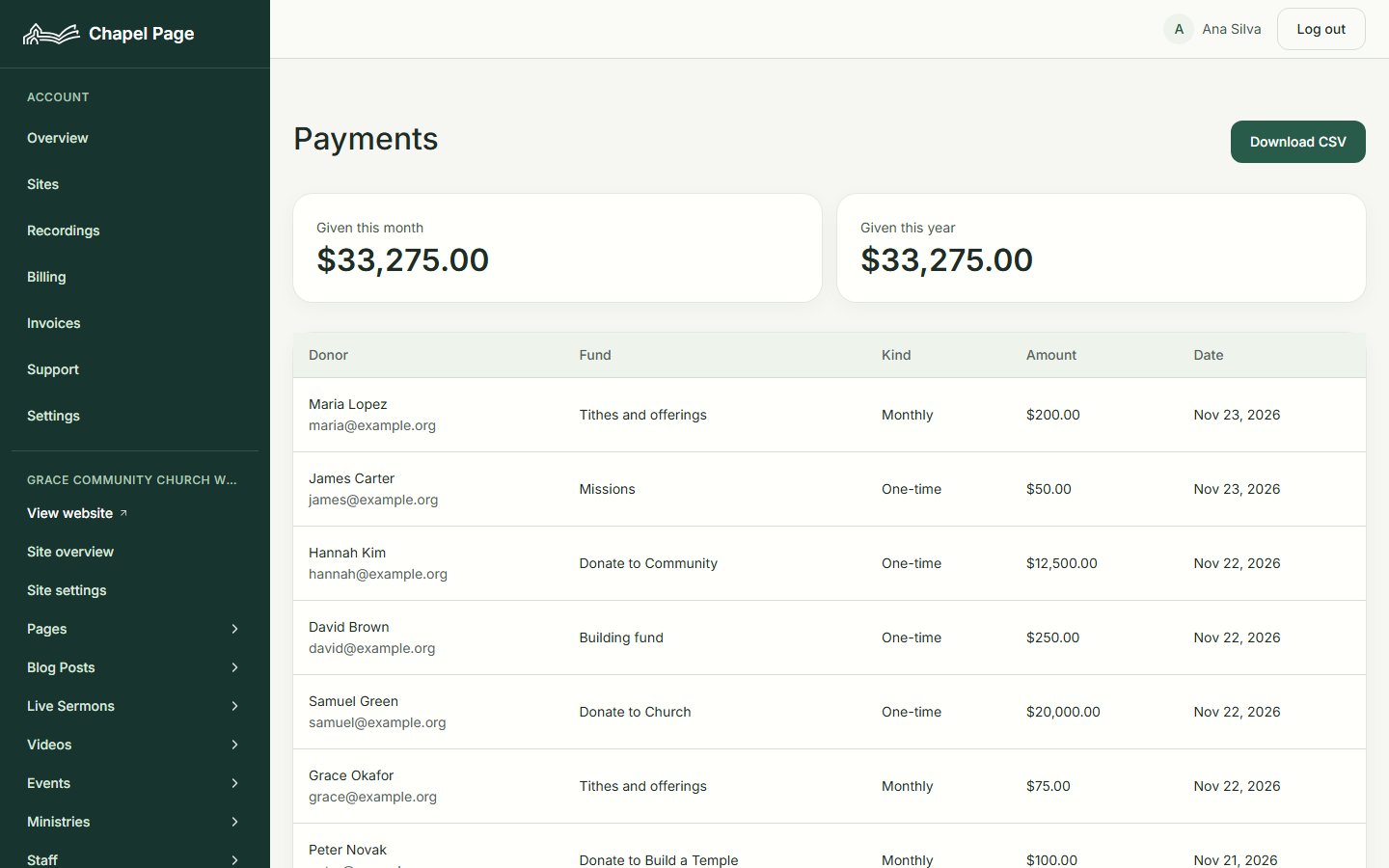
- Given this month and Given this year: the totals of every gift recorded in the current calendar month and year.
- The gifts list, newest first, 20 per page, with Newer and Older links at the bottom. Each line shows:
- the donor's name and email, as typed on Stripe's page;
- the Fund, or the Donation's title for a gift given on a Donation page;
- the kind: One-time or Monthly;
- the amount and the date.
- Download CSV (top right) downloads every gift as a spreadsheet file with the columns
date, name, email, fund, kind, amount, currency. Open it in Excel, Google Sheets or Numbers for giving statements and bookkeeping.
A monthly gift adds a new line each month it is paid. Only online gifts appear here; cash and checks stay in your own records.
Step 3: Set your Funds
Funds are the purposes donors choose from, such as Tithes, Missions or a Building fund. The choice is saved with each gift, so at the end of the year you know where every gift was meant to go.
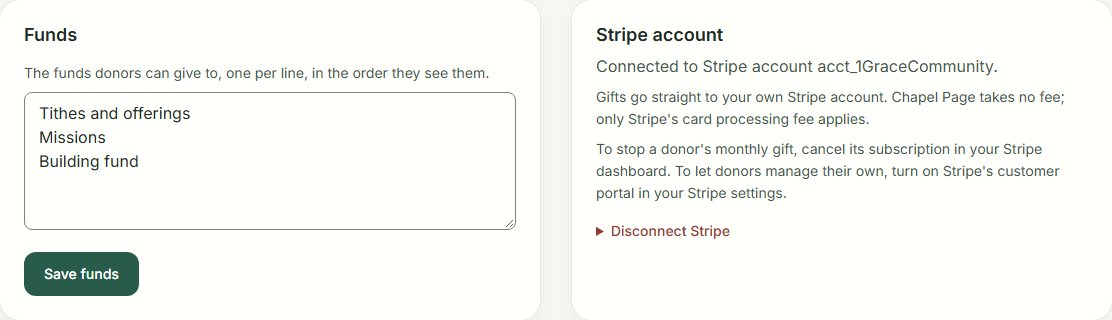
- Scroll below the gifts list to Funds.
- Type one Fund per line, in the order donors should see them.
- Press Save funds. "Funds saved." confirms it.
Good to know:
- A new Site starts with one Fund called General.
- With one Fund, donors are not asked to choose. With several, the Give widget shows a Give to list.
- Blank lines and repeated names are removed when you save. If you remove every Fund, General comes back, so donors always have one.
- Renaming a Fund does not change gifts already recorded; they keep the name they were given under.
Step 4: Add a Give widget to a page
The Give widget is the giving form on your Site. You can put it on any page: a dedicated Give page, your home page, or the footer.
- Open Pages, create a page called "Give" (or open an existing one) and press Edit to open the builder.
- Add a row, then press + (Add widget) in its column. The widget list opens on the left.
- Type Give in Search widgets (or scroll down to the church widgets) and press Give.
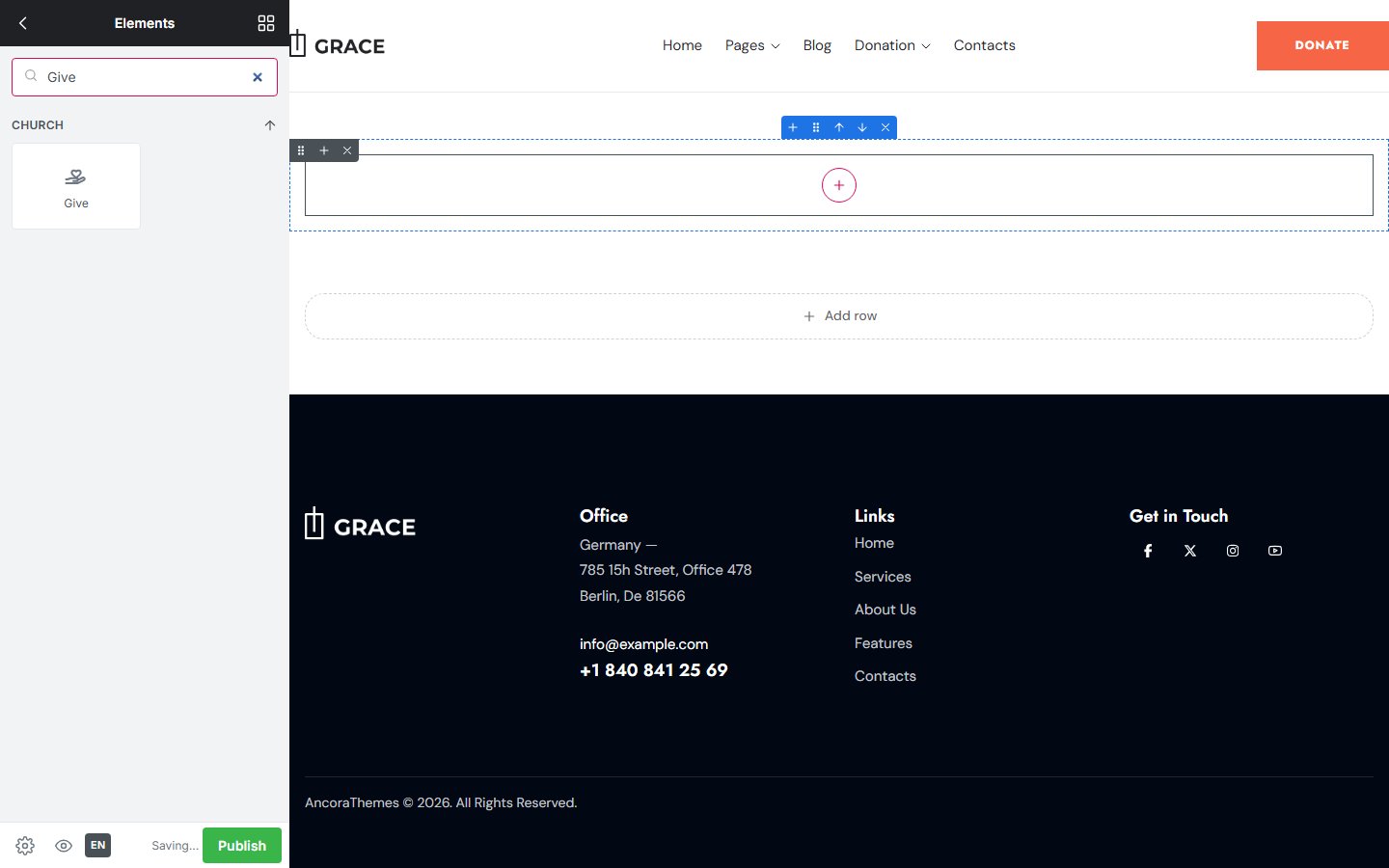
The widget appears on the page and its settings open on the left.
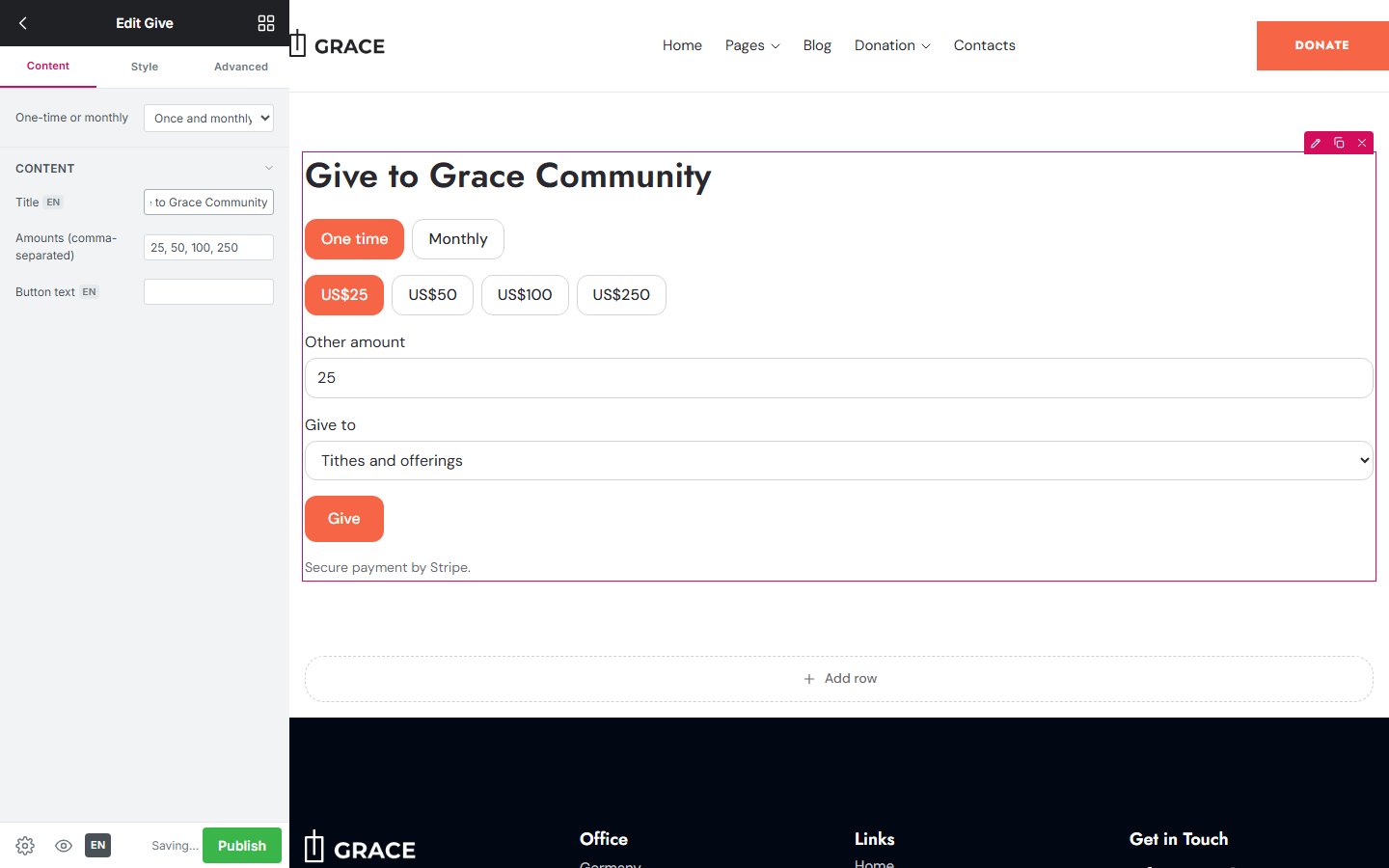
The settings, under Content:
| Setting | What it does |
|---|---|
| One-time or monthly | Once and monthly lets the donor choose; Once or Monthly offers only that kind. |
| Title | The heading above the form, such as "Give to Grace Community". Leave it empty for no heading. It can be different in each of your Site's languages. |
| Amounts (comma-separated) | The suggested amounts as whole numbers, for example 25, 50, 100, 250. Donors can always type another amount. |
| Button text | The button's words. Empty means "Give" in the page's language. |
The Style and Advanced tabs change colors, fonts, spacing and visibility, as for any widget.
- Press Publish. The page and its widget are now live (once the Site is Launched).
Tip: many Templates have a Donate button in the header. Open your header in the builder and link that button to your Give page, so giving is one tap from every page of your Site.
Step 5: What donors see
On your Site, the Give widget shows the kind of gift, the suggested amounts, an Other amount box, the Fund list (when you have more than one Fund) and the button.
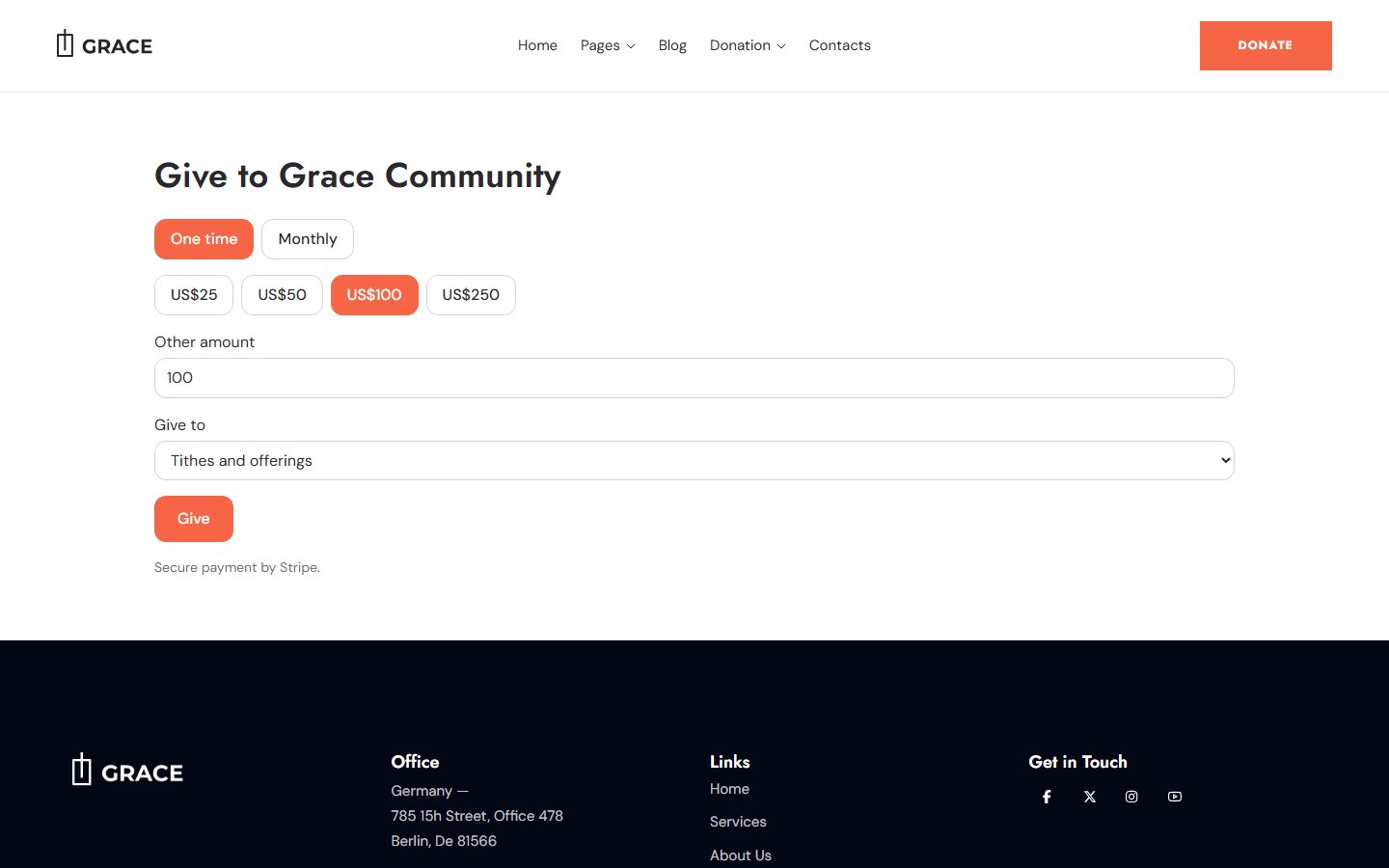
- The donor picks One time or Monthly.
- They press a suggested amount (shown with the currency, like US$50) or type their own under Other amount. Gifts can be from 1 to 100,000 in your currency, with cents allowed.
- They pick a Fund under Give to.
- They press Give and go to Stripe's Checkout page.
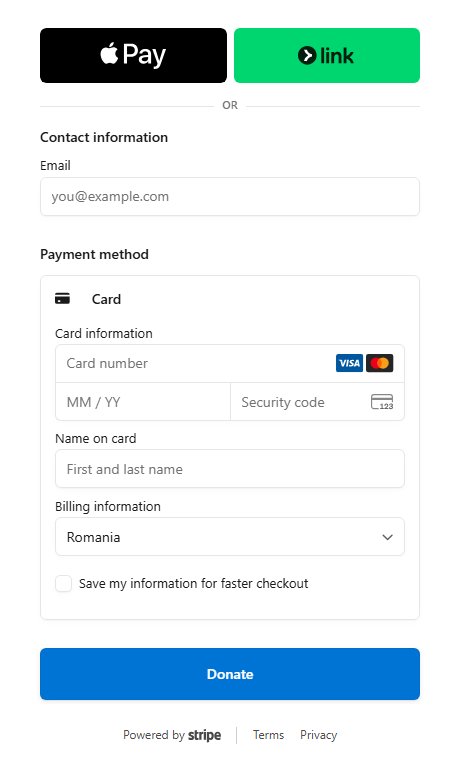
On Stripe's page the donor types their email, card and name and presses Donate (or Subscribe for a monthly gift). Stripe's page speaks the language of the page the donor came from. Stripe may also offer Apple Pay, Google Pay or Link when the donor's device supports them.
When the payment goes through, Stripe sends the donor back to the same page, which thanks them:
If the donor closes Stripe's page or presses back, nothing is charged and nothing is recorded.
Step 6: Raise money for a cause with a Donation
A Donation is a fundraising page for one cause, such as a new roof, a mission trip or meals for families. It has a title, a picture, text, a gallery and a goal, and its own give form. Gifts given on its page add up toward its goal, with a progress bar everyone can see.
Create a Donation
- In the dashboard sidebar, open Donations → List donations. The list shows every Donation, published or draft.
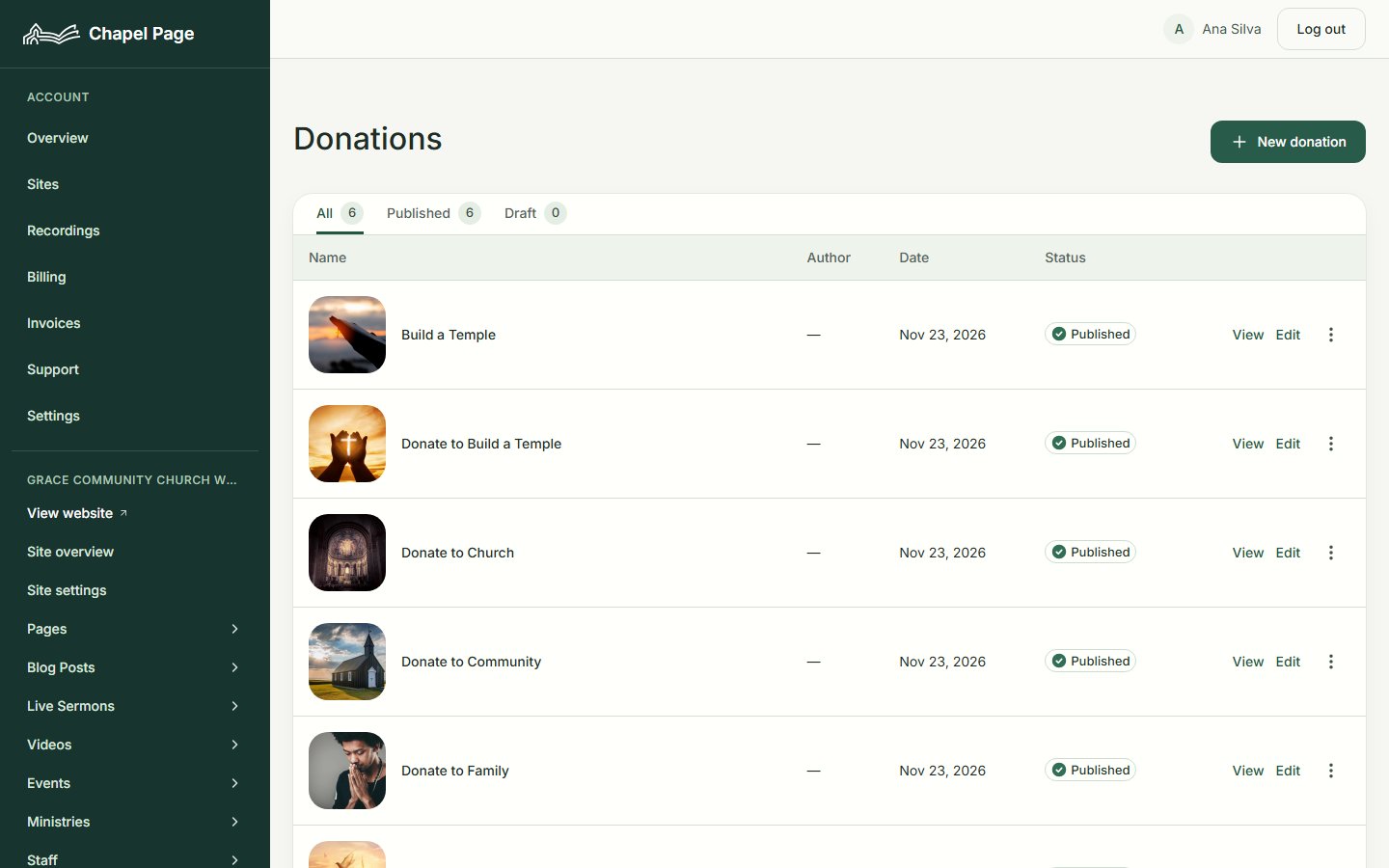
- Press New donation (or Create donation in the sidebar).
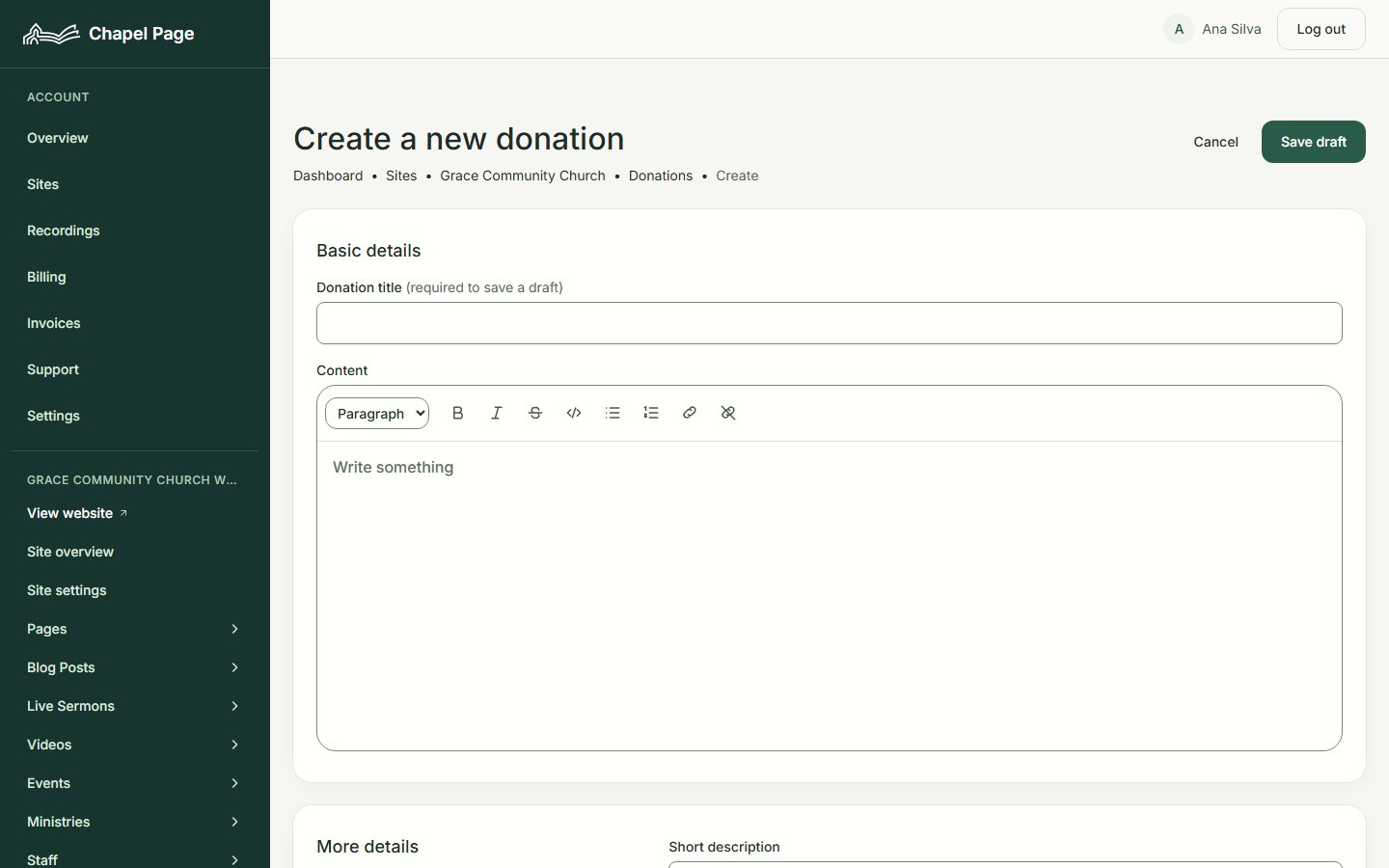
- Fill in the form:
- Donation title (required to save a draft), such as "New roof for the chapel".
- Content: the story of the cause, why it matters and what the money pays for. Pictures and headings are welcome.
- Short description: one line shown on the Donation's card in the list.
- Category, such as Buildings or Missions, shown above the title.
- Donation cover: the picture on the card and at the top of the page (JPG, PNG, WebP or GIF, up to 10 MB).
- Gallery: more pictures, shown two across on the Donation's page.
- Search preview: an optional SEO title and description for Google and for links shared on social media.
- Set the Goal amount, in whole units of your giving currency (for example
50000for $50,000). Leave 0 for no goal; the page then shows only what has been raised.
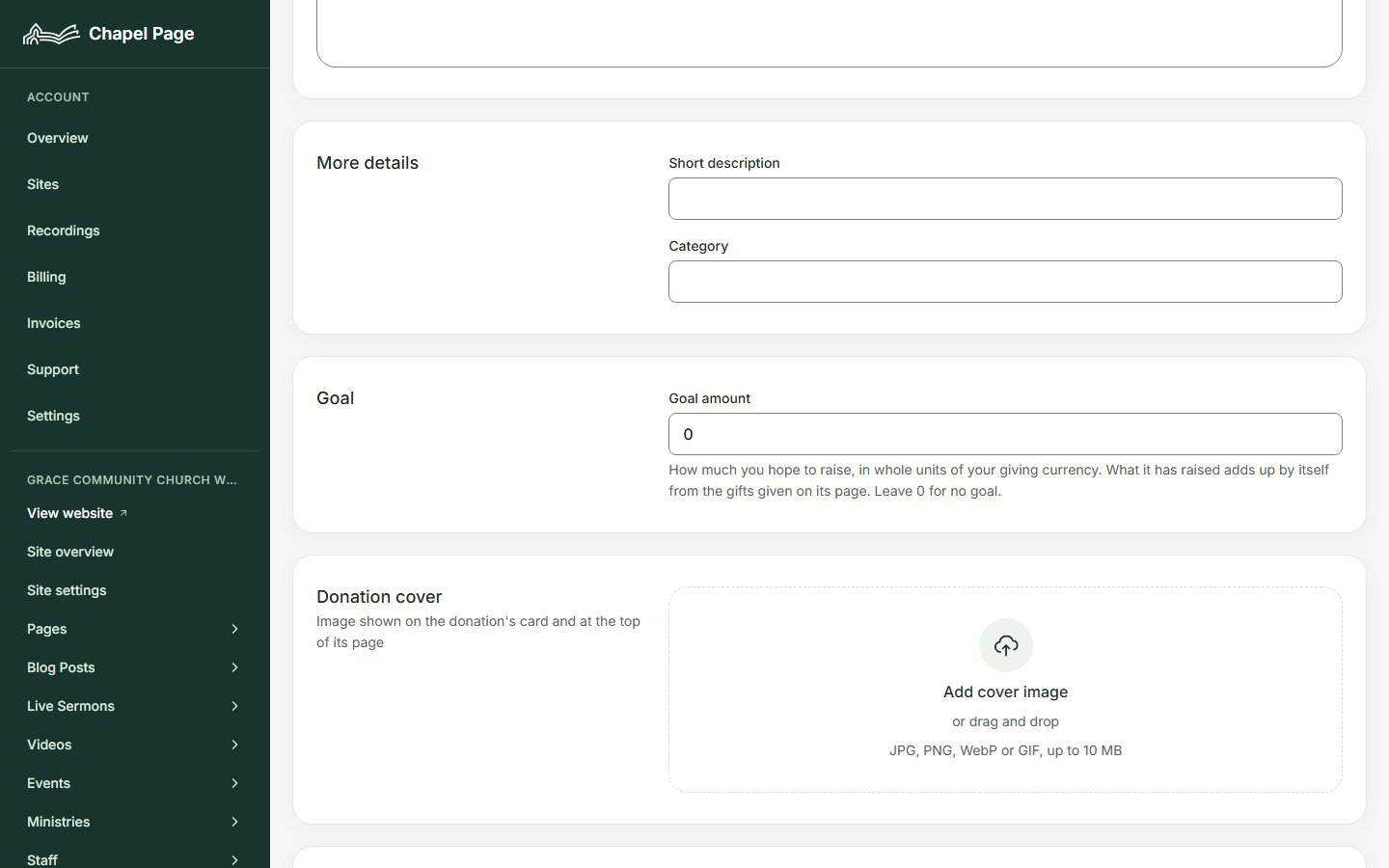
- Press Save draft to keep working, or Publish to put it on your Site.
What visitors see
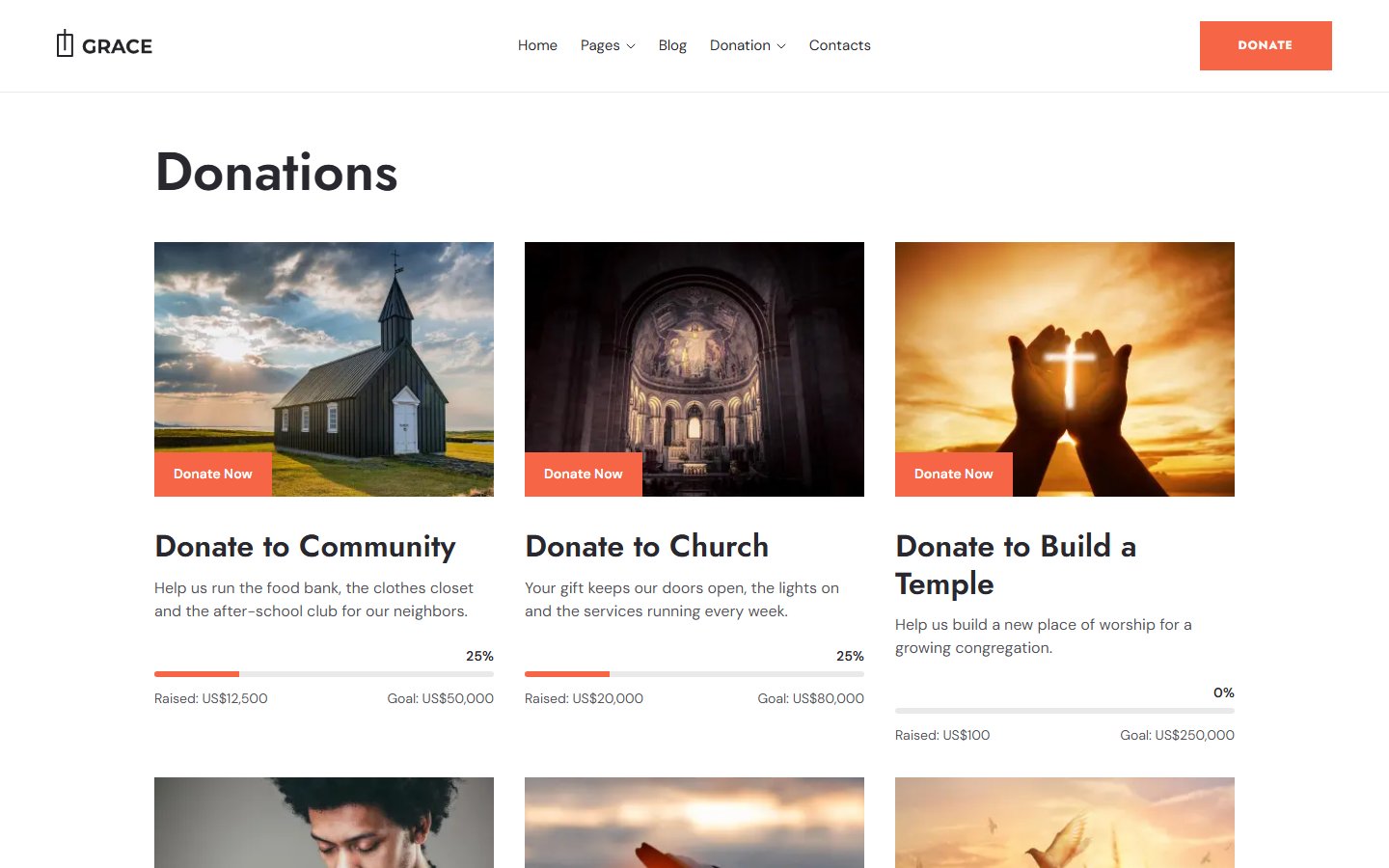
Your Site lists every published Donation at /donations, one card per cause, with its picture, a Donate Now button, the category, the title, the short description and how far along it is.
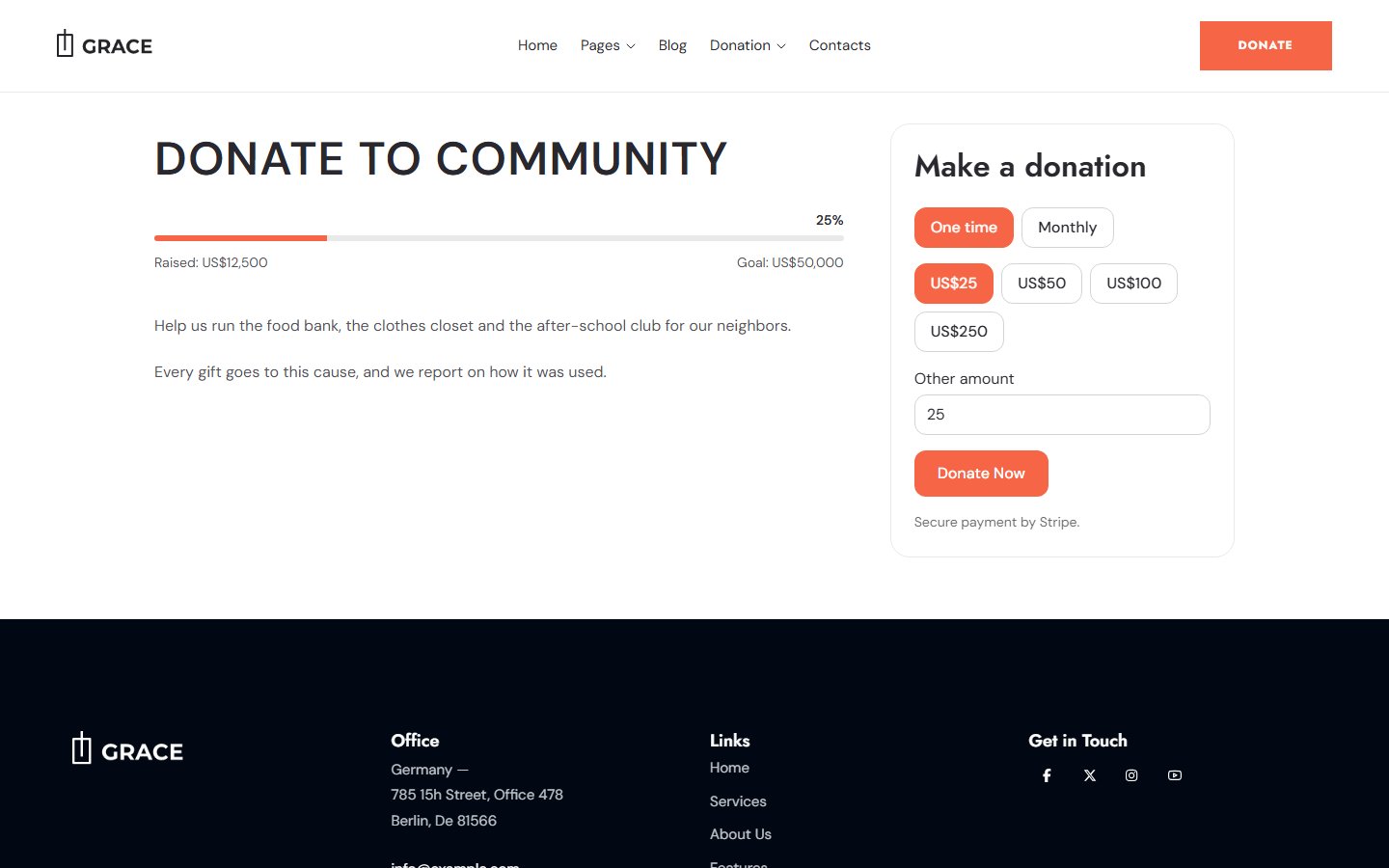
Each Donation has its own page at /donations/ followed by its name. It shows the cover, the title, the progress (percent, bar, Raised and Goal), the text and gallery, and a give form beside them.
Good to know:
- A gift given on a Donation's page goes to that Donation, not to a Fund. In Payments it shows the Donation's title in the Fund column.
- Raised is the sum of the gifts given on that page. Each paid month of a monthly gift counts too.
- The percent keeps counting past 100% when a cause is over-funded; the bar stays full.
- Press Unpublish when the campaign ends; the page leaves your Site and its gifts stay in Payments. Delete this donation removes it for good, and its gifts still stay in Payments.
- You can show Donations on your home page with the content widgets, so the whole church sees how close you are to the goal.
Monthly gifts
A monthly gift is a Stripe subscription on your church's account. Stripe charges the donor each month, sends a receipt each time and reports each payment, which adds a line in Payments.
- To stop a donor's monthly gift, cancel its subscription in your Stripe dashboard (Customers or Subscriptions). Chapel Page does not cancel subscriptions for you.
- To let donors manage their own monthly gift (change the card, cancel), turn on Stripe's customer portal in your Stripe settings.
- If a monthly charge fails (an expired card, for example), Stripe retries it by its own rules and emails the donor. Only paid months appear in Payments.
Refunds, receipts and payouts
All of these happen in your Stripe dashboard, because the payments are yours:
- Receipts: Stripe emails a receipt for each payment. Check that "Successful payments" emails are on in Stripe's settings (Settings → Customer emails), and add your church's logo and colors to Stripe's branding settings.
- Refunds: open the payment in Stripe and press Refund. The gift stays in your Payments list in Chapel Page, so note refunds in your own records.
- Payouts: Stripe pays your balance out to the church's bank account on the schedule set in Stripe (Settings → Payouts).
- Fees: Stripe's card fee is taken from each gift by Stripe. Chapel Page adds nothing. On a $100 gift your church receives $100 minus Stripe's fee.
- Year-end statements: download the CSV from Payments and build each donor's statement from it, or use Stripe's own reports.
Disconnect Stripe
At the bottom of Payments, the Stripe account box shows which account is connected. To unlink it, open Disconnect Stripe and confirm.
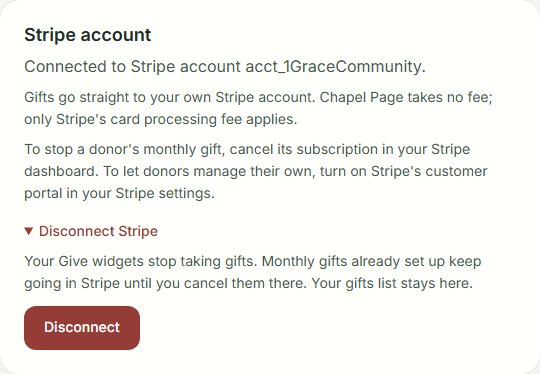
When you disconnect:
- Every Give widget and Donation form stops taking gifts and shows "Online giving is not set up yet."
- Monthly gifts already set up keep going in Stripe until you cancel them there.
- Your Funds and your gifts list stay in Chapel Page.
To use another Stripe account, disconnect, then press Connect Stripe and log in to the other account.
If you change plans
If you move to Free or Lite, giving is paused: the Give widget disappears from your Site and Donation pages stop showing. Your Funds, Donations and recorded gifts stay in your Account, ready when you upgrade to Plus or Pro again. Monthly gifts keep running in Stripe; cancel them there if you need to. See Change or cancel your plan.
Troubleshooting
The Give widget says "Online giving is not set up yet." Stripe is not connected for this Site. Open Donations → Payments and press Connect Stripe.
A donor sees "your gift could not be started". Check, in order: the Site is Launched; your plan is Plus or Pro; Stripe is still connected (the account box on Payments); the Stripe account is active and can take payments (Stripe may ask for missing details in your Stripe dashboard); the amount is between 1 and 100,000.
The Give widget does not show on my Site at all. Your plan does not include giving (Free or Lite), or the page with the widget is not published. Upgrade to Plus or Pro, and publish the page from the builder.
A donor paid but the gift is not in Payments. Gifts appear within seconds of Stripe confirming the payment. A bank debit can take a few days to clear and appears only once it has. If a card gift is missing after an hour, find the payment in your Stripe dashboard and open a support ticket with its date and amount.
I want to stop all giving for a while. Remove or unpublish the pages with the Give widget and unpublish your Donations. Disconnecting Stripe also stops new gifts, but monthly gifts keep going in Stripe.
Questions
Does Chapel Page take a fee on gifts? No. Gifts are charged on your own Stripe account and Chapel Page takes no share. Only Stripe's card fee applies.
Can Chapel Page see our church's money or Stripe password? No. You log in on Stripe's page, and Chapel Page only receives the information that a gift was paid (amount, Fund, donor name and email) to show it in Payments.
Can donors give without an account? Yes. Donors need no login on your Site. They type their email and card on Stripe's page.
Which currencies can we take? Your Stripe account's default currency. Every gift on your Site is in that currency.
Can we have more than one Give page? Yes. Put the Give widget on as many pages as you like, each with its own title, amounts and kinds. They all share the Site's Funds.
Are gifts tax-deductible? That depends on your church's status and country, not on Chapel Page. Stripe's receipts show the amount and date; ask your accountant what your year-end statements need to say.